Configuring the wallet pass on Interactive receipt
Once your template is saved, you can distribute it across three main channels:
Step 1: Via E-Receipts
-
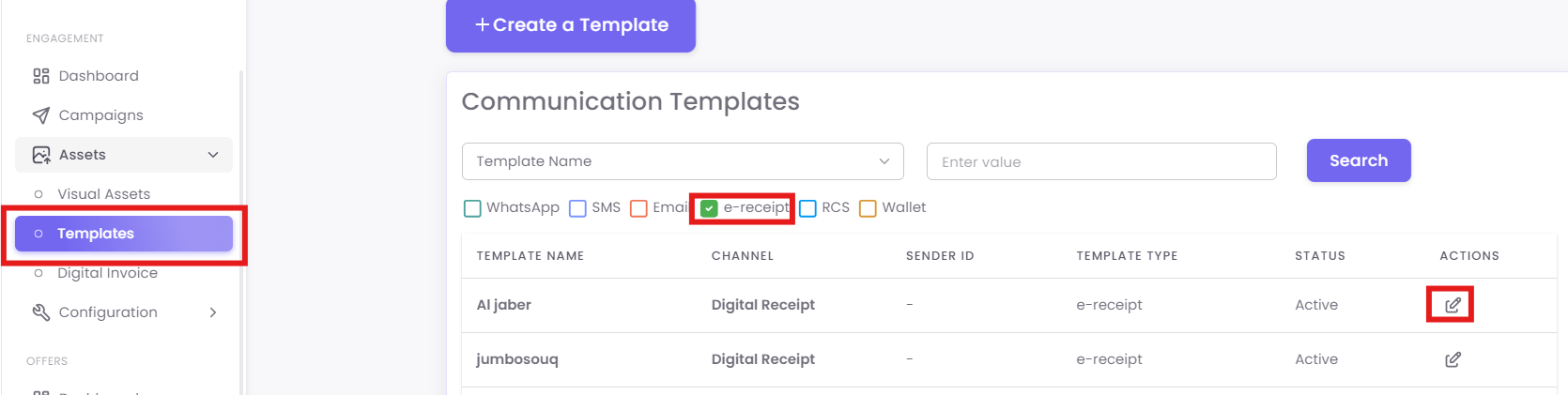
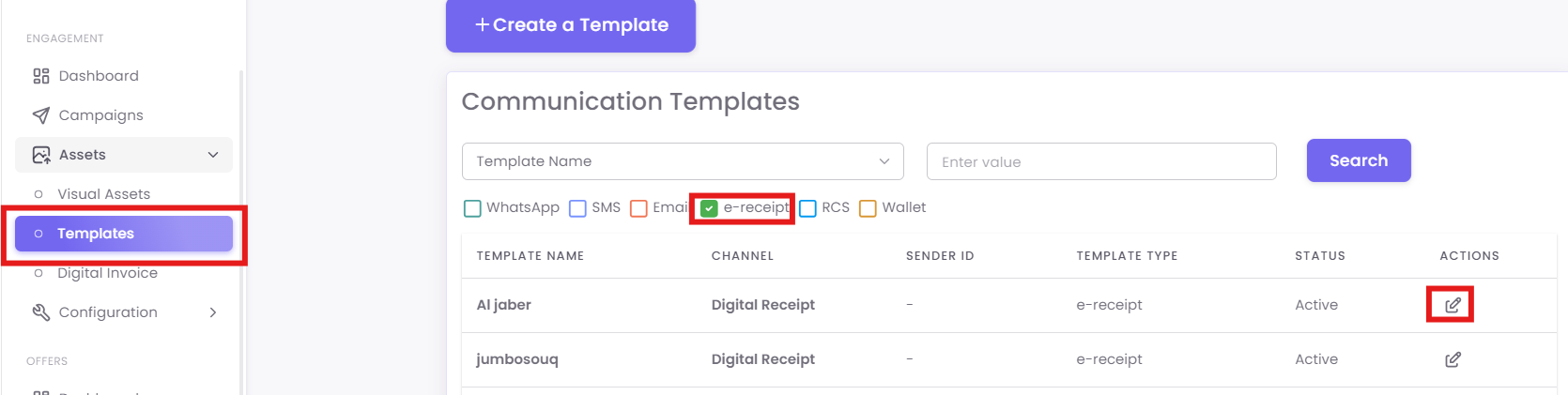
Open the existing E-Receipt Editor under template page.
-
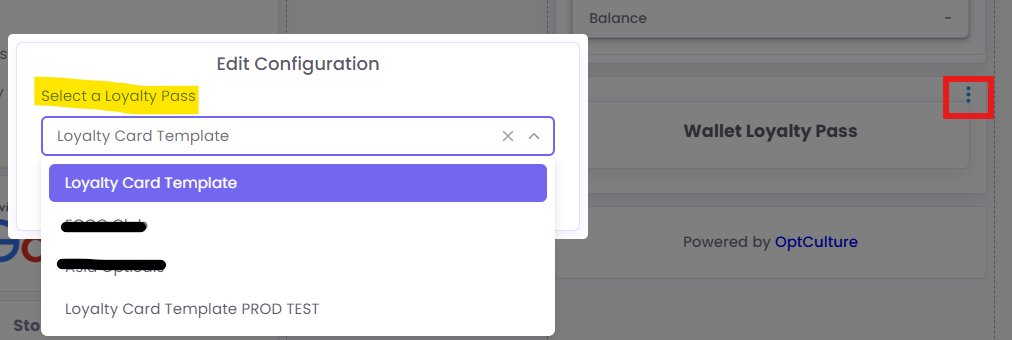
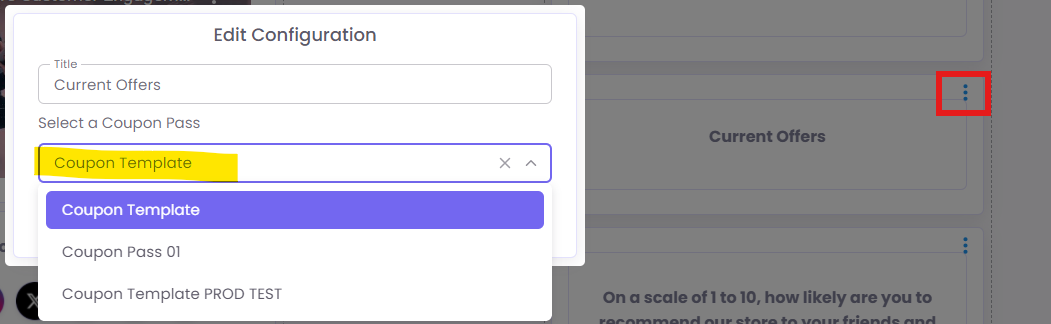
Find the Wallet Loyalty Pass or Current Offers block.
-
Click the Three-Dot Menu > Edit/Configuration.
-
Select your saved template from the dropdown and click OK.
Step 2: Via Marketing Campaigns (SMS/Email)
-
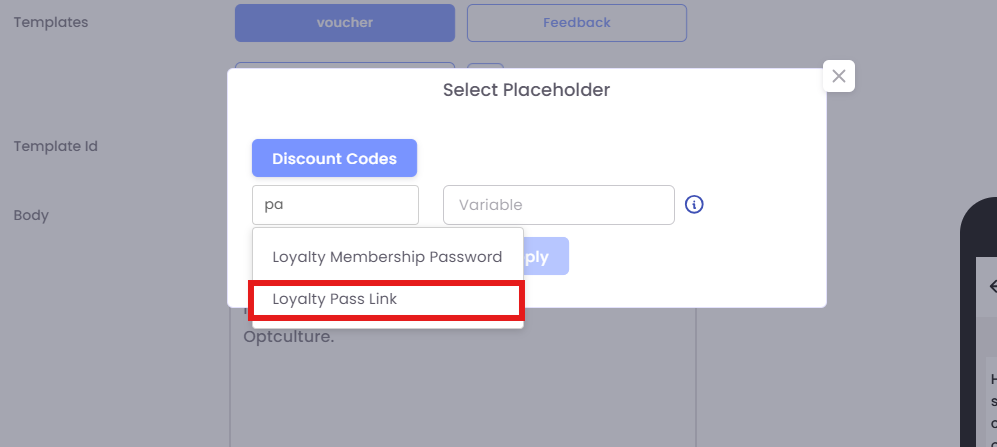
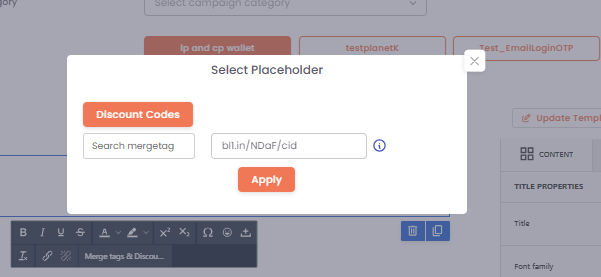
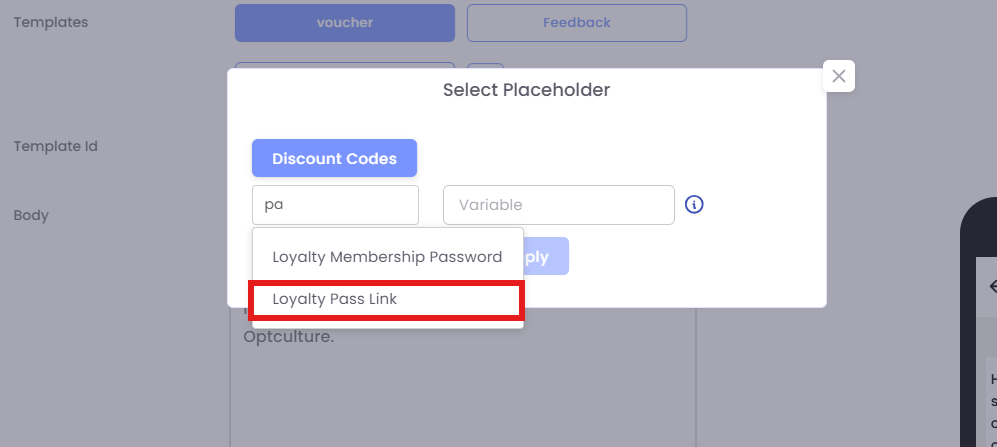
Loyalty Pass: Insert the
Loyalty Passmerge tag. -
-
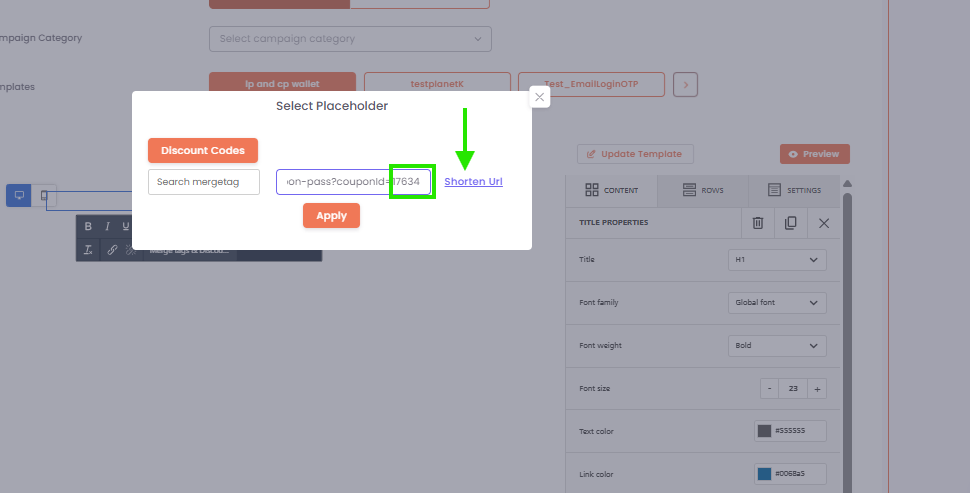
Coupon Pass: Use the dynamic URL format: https://optculture.app/api/apple-wallet/coupon-pass?couponId=(coupon_id).
- Add coupon id in the url
-
Tip: Always use a URL shortener before sending via communication channels to save characters.
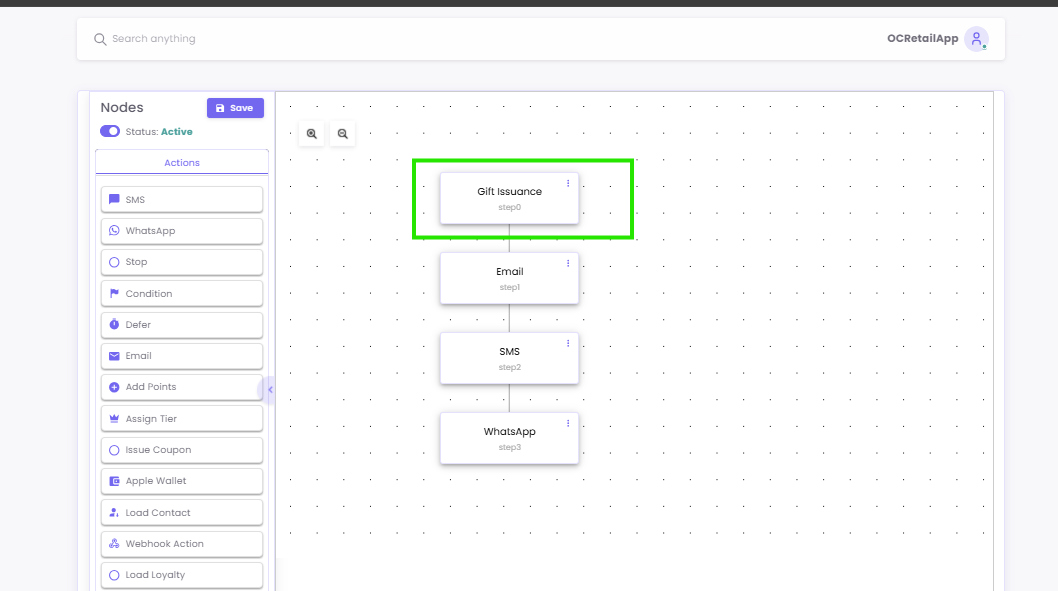
Step 3: Via Flows (Automation)
For automated gift card issuance:
1. Go to Flows > Gift Issuance Trigger.
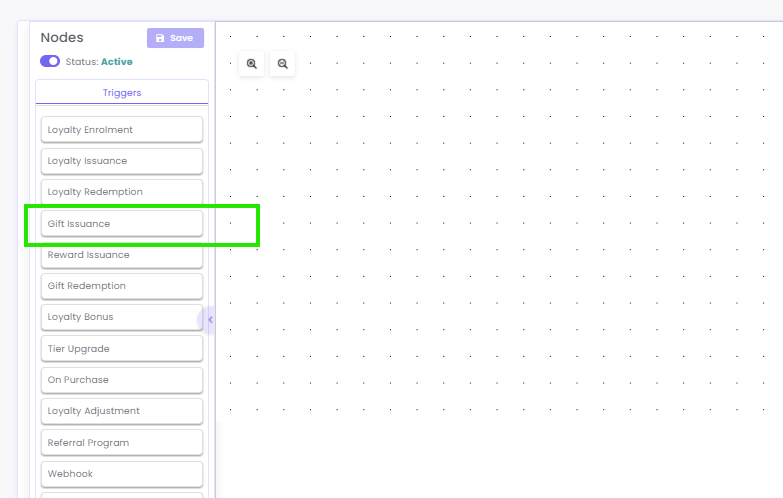
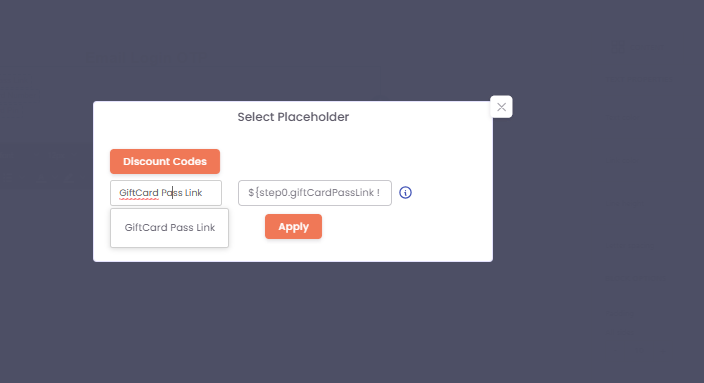
2. Add the Gift Pass merge tag to the automated message.