
Creating an SMS Campaign
Step 1: Navigate to Campaigns
1. Select Campaigns and click on the +Create a Campaign button.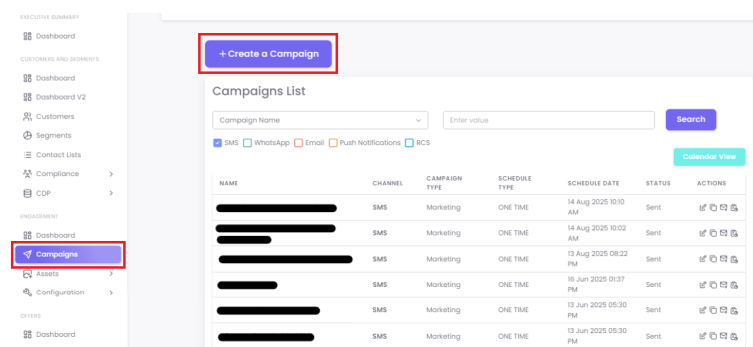
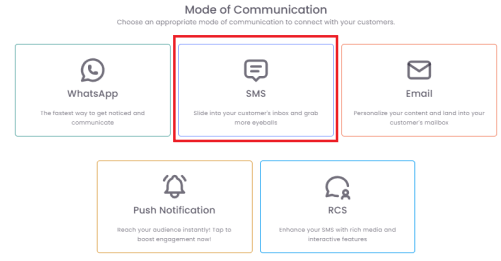
2. Select SMS from the available "Mode of Communication" options.
Step 2: Enter Campaign Details
-
Fill in the required information for your campaign. This includes:
-
3.Campaign Name: Provide a unique and descriptive name for yourcampaigncampaign.and -
Audience: Define the audience for your campaign.
-
4.Message Template: Select a pre-approved message template or create a new template. (Note: DLT approval is mandatory in India).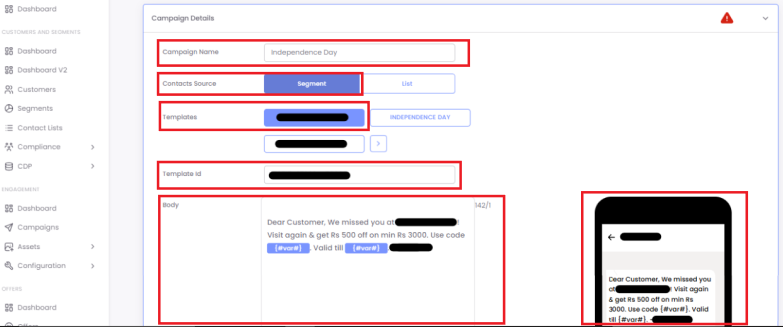
-
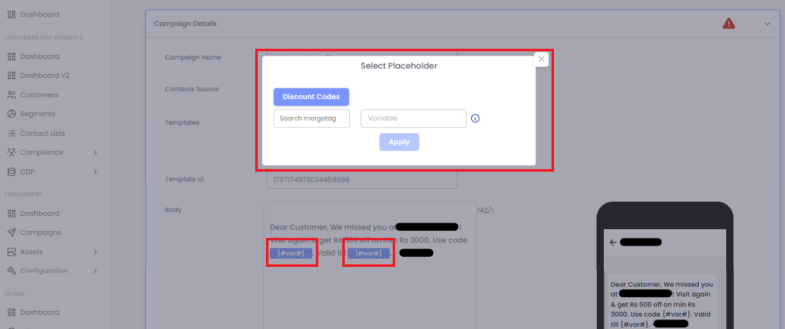
5.Personalization: Forpersonalisation,personalization,Clickclick on Add placeholderplaceholderto addthemerge tags.
-
6.
Step 3: Test Your Campaign
-
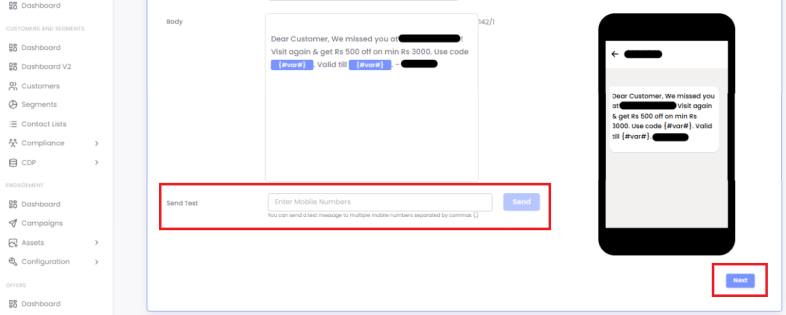
Send a test to yourself to verify the content and personalization.
-
Once satisfied, click Next.
7.Step 4: Select aYour Segment
-
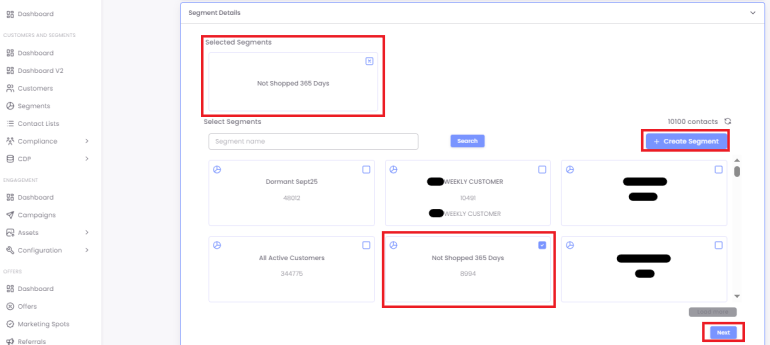
Select an existing segment or create a new
oneone.and -
onClick Next.
8.
Step 5: Schedule type:Your Campaign
-
You have two options for scheduling:
-
a.One-time:CampaignThe campaign will be sent once as per the scheduled date and time.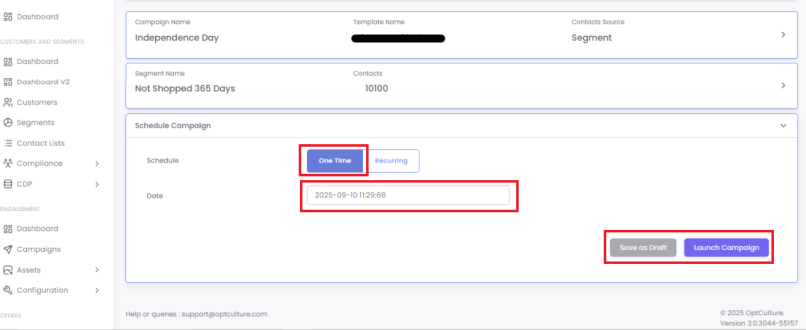
-
b.Recurring:CampaignThe campaign can be sent repeatedly, for example, on a daily, weekly,monthlymonthly,andor yearly basis.
-
-
Ramp
upup:-thisThis feature helps you divide the chosen segment into small batches of unique contacts (this is done by entering a Send Volume) and send the same campaign to each of those batches.-
For example, a segment consists of 10,000 contacts. If you want to send the campaign daily for 5 days such that the campaign reaches
toall 10,000 contacts exactly once, you choose Daily, specify From and To dates, enable the send rate ramp up, and enter the send volume as 2,000.000. By doing this, the system will pick 2,000 unique contacts from the chosen segment and send the campaign until all the contacts have been covered.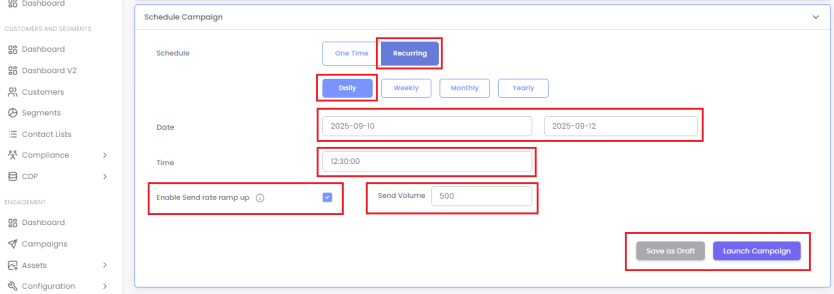
-
Step 6: Launch or Save
-
9. -
Clicking Launch Campaign saves the campaign and sends it at the scheduled time.