
Gift Card Reports
To
Step track1: Access the performanceReport
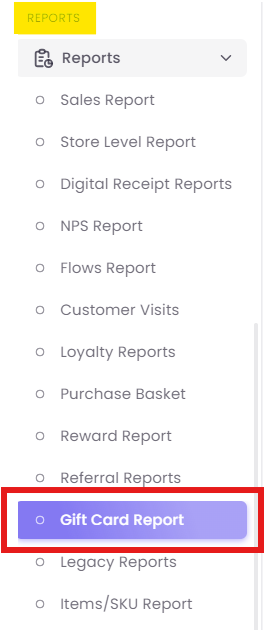
Step 2: Set Your Filters
ThisThe report allowswill load with a filter bar at the top, allowing you to see:narrow down your data.

-
TotalGiftcardsCardissuedNumber: Use this search box to find a single, specific gift card. This is most often used for customer service inquiries. -
TotalRelativevalueDate:issuedSelect the time period for your analysis (e.g., "Today," "Previous 30 days," "Previous 3 months"). This filter applies to the purchase date of the gift cards. -
TotalPurchasedvalueBy:redeemedUse this filter to find all gift cards purchased by a single customer (by searching their mobile number or ID).
Step 3: Review High-Level KPIs

-
Gifts Purchased: The total count of individual gift cards sold.
-
OutstandingGiftbalanceCards Value: The total face value of all gift cards sold (e.g., 17,999). -
DetailsCards Redeemed: The total count ofindividualcards that have had any redemption activity. -
Redeemed Value: The total monetary value that has been redeemed from all cards
and(e.g.,their200).status. -
Outstanding: The total unredeemed balance remaining on all cards sold. This is a key financial metric as it represents your outstanding liability.
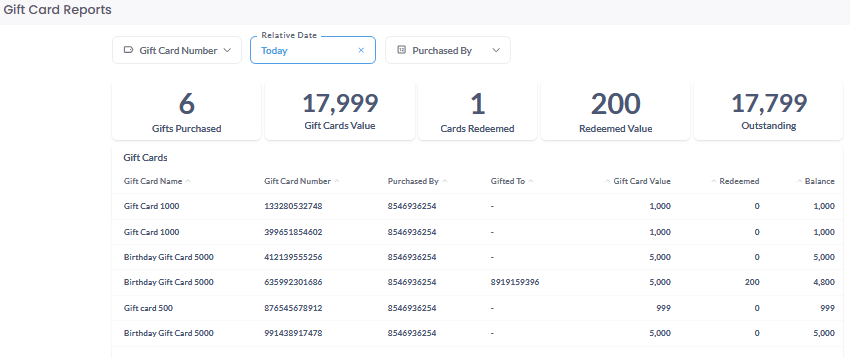
Step 4: Analyze the Detailed "Gift Cards" Log
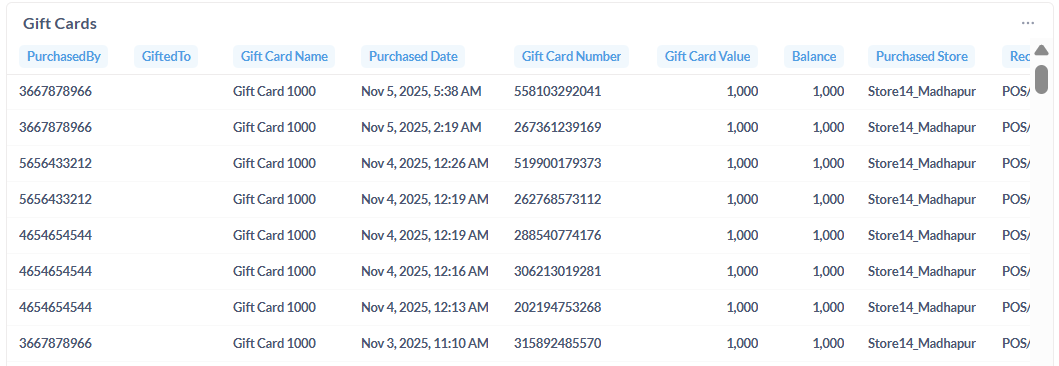
The main table at the bottom provides a line-by-line log of every individual gift card that meets your filter criteria.
-
Gift Card Name: The name of the specific gift card product (e.g., "Gift Card 1000," "Birthday Gift Card 5000").
-
Gift Card Number: The unique code for the gift card.
-
Purchased By: The contact ID (e.g., mobile number) of the customer who bought the card.
-
Gifted To: The contact ID of the customer who received the card, if one was specified during purchase.
-
Gift Card Value: The initial face value of that single card.
-
Redeemed: The total amount redeemed from that single card.
-
Balance: The remaining value on that single card. (This is calculated as
Gift Card Value-Redeemed).