Option A: Individual Accounts (Free, Pro, or Max)
Step 2: Click the + Add button and choose Add custom connector from the dropdown menu. 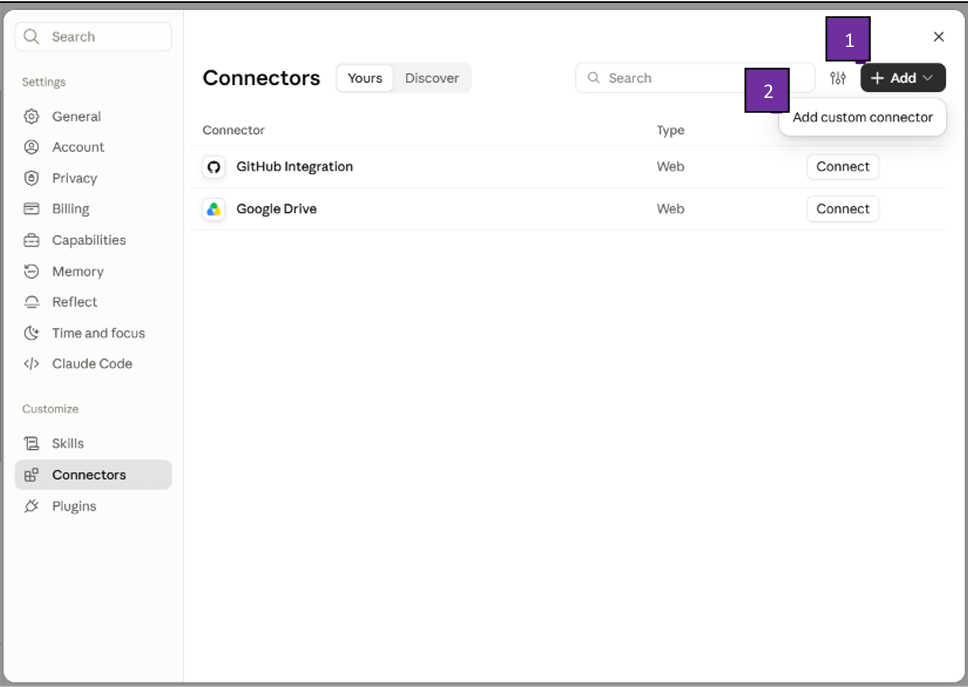
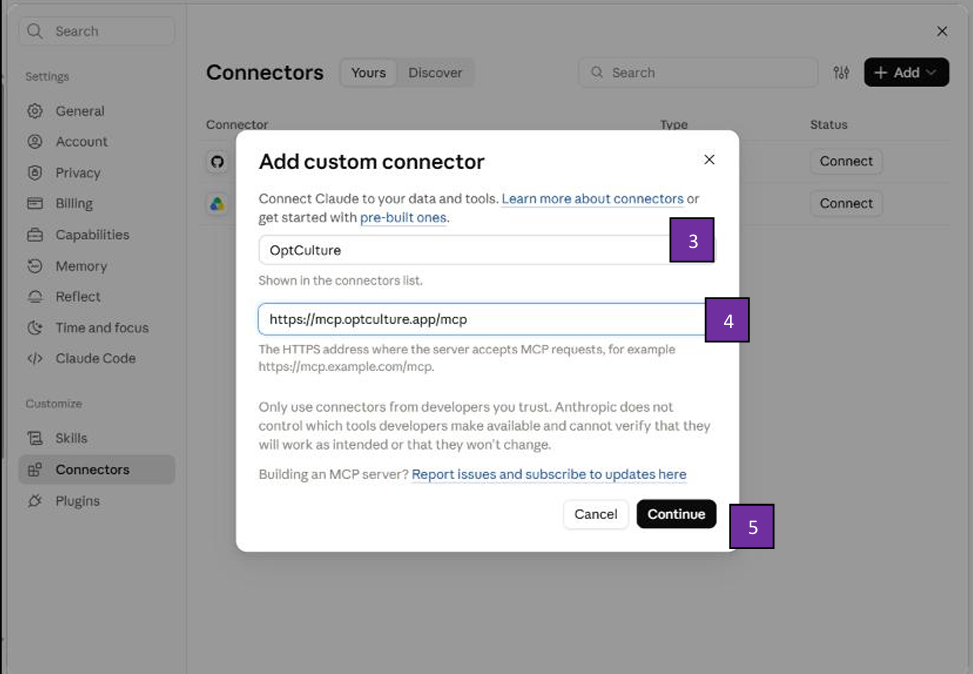
Step 3: In the dialog box, enter OptCulture as the name.
Step 4: Paste the Remote MCP server URL: [https://mcp.optculture.app/mcp](https://mcp.optculture.app/mcp).
-
-
Note: If your server does not support dynamic client registration, expand Advanced settings and enter the OAuth Client ID and Secret.
-
Step 5: Click Continue.
Step 6: On the Authentication screen, ensure Sign in now and Register automatically are selected, then click Connect. 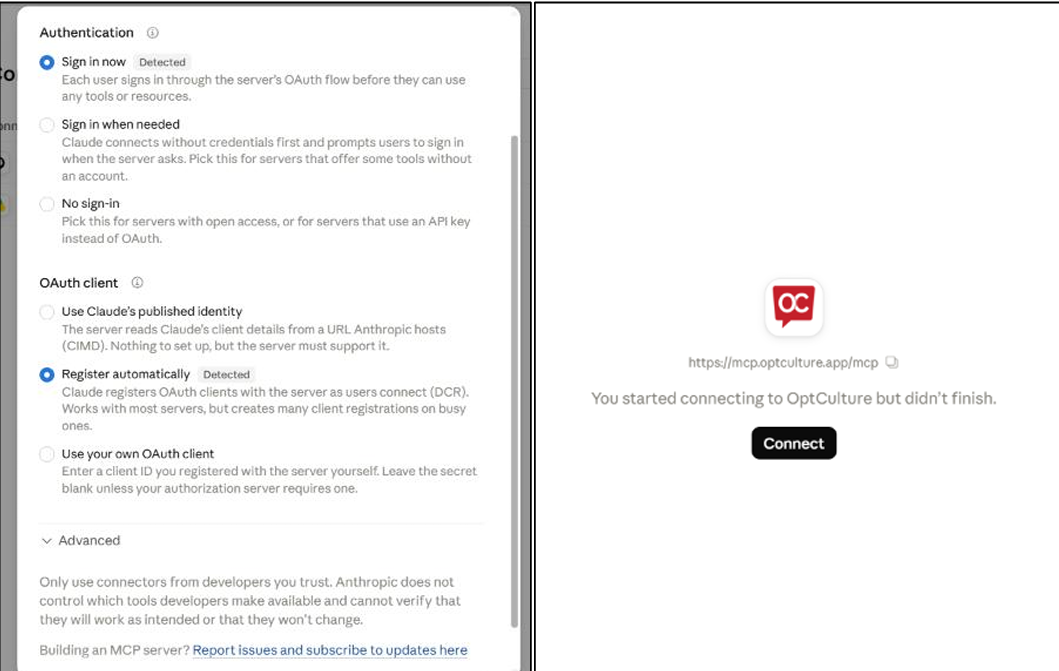
Step 7: A prompt will appear asking you to authorize the connection. Enter your OptCulture Credentials and click Authorize. 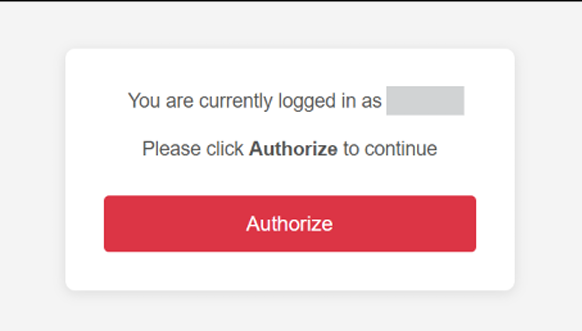
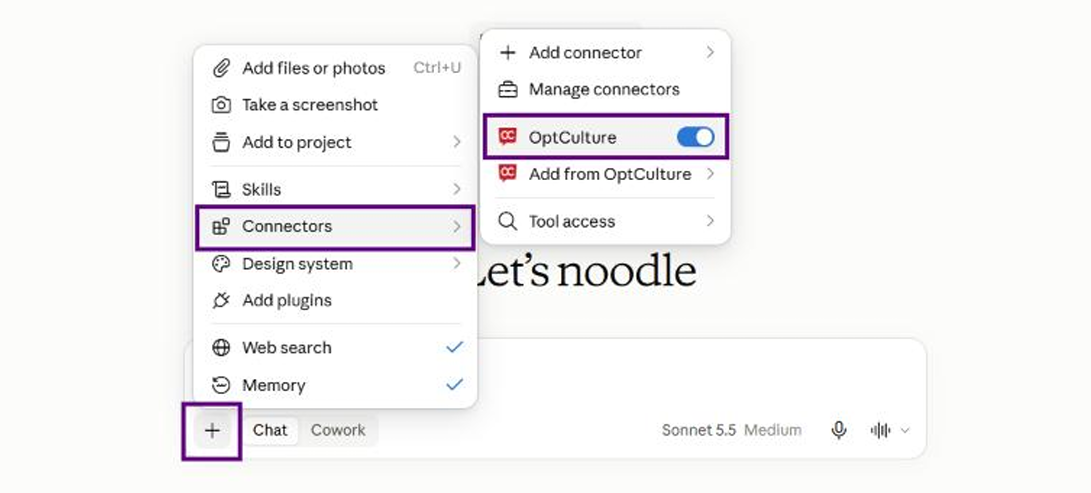
Step 8: To use the feature, open a new chat, click the + icon, select Connectors, and toggle OptCulture on.