
Create a Coupon
Step 1: Navigate to Discounts
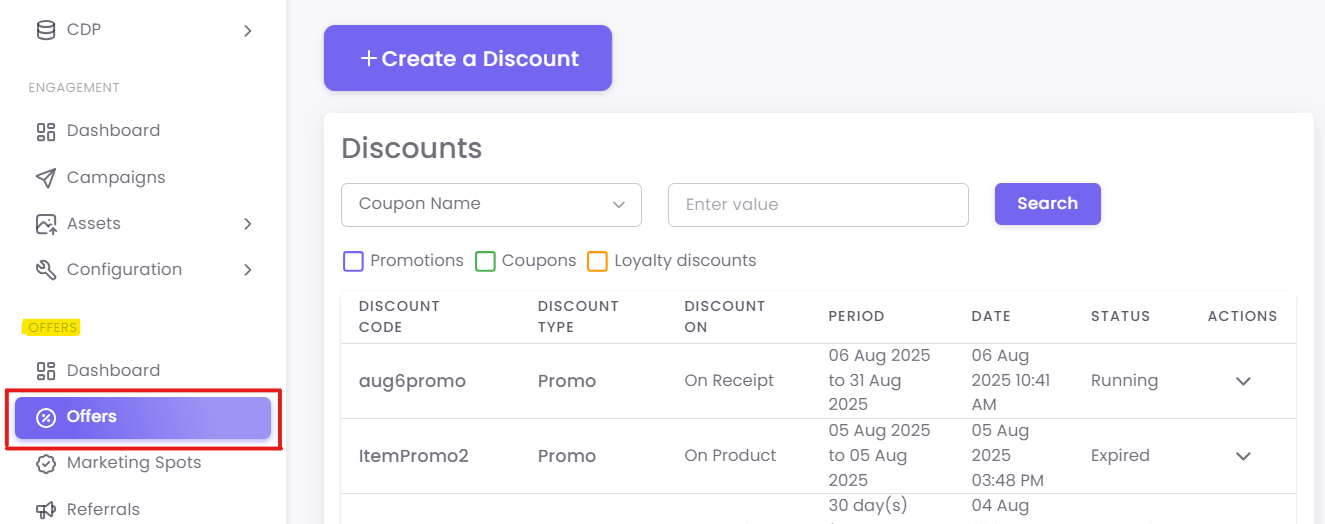
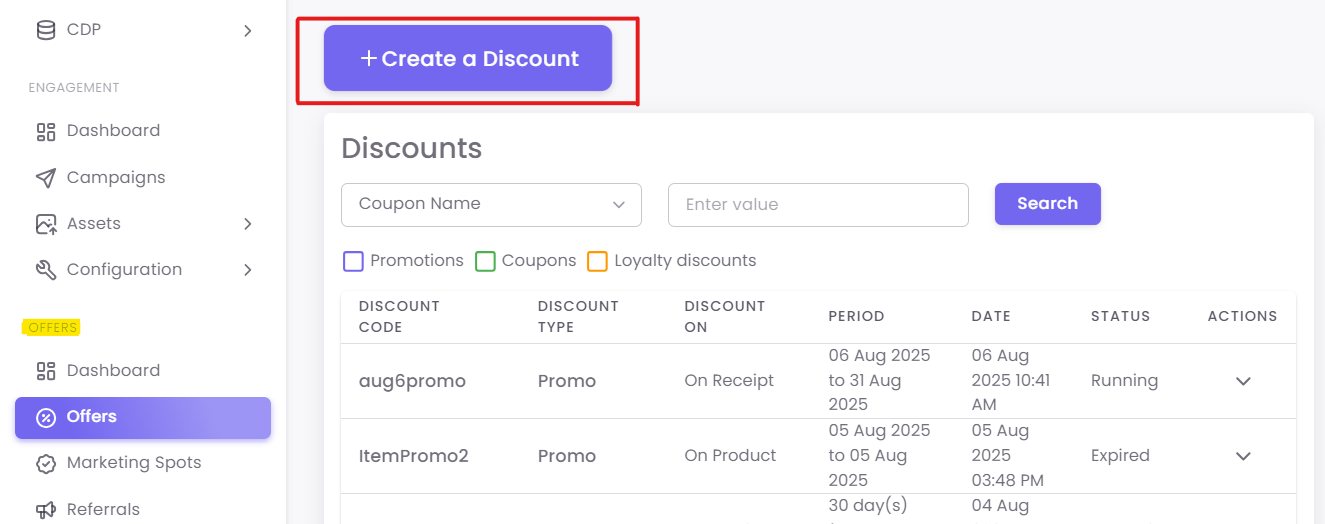
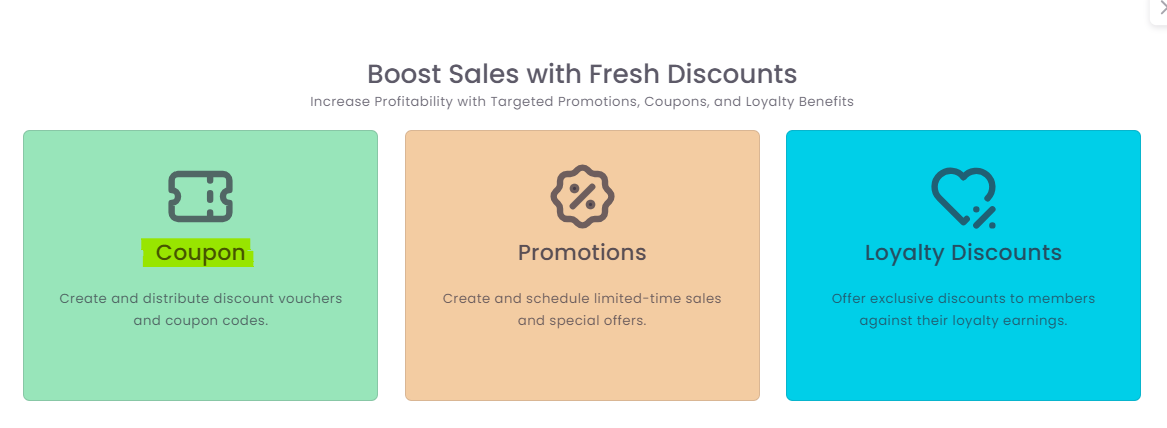
Click the +Create a Discount button and select Coupon.
Step 2: Enter Coupon Details
-
-
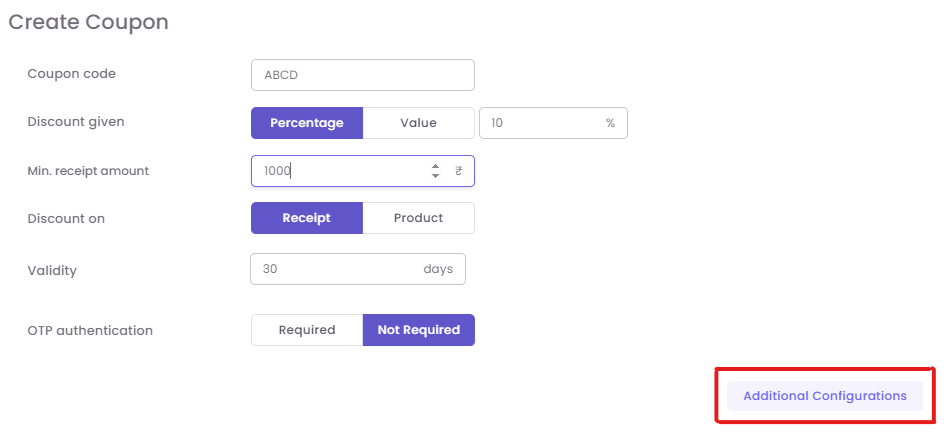
Coupon Code Name: An internal name for your reference (e.g., "Summer2024-15%Off").
-
Discount Amount/Percentage: Define the value, such as a fixed
$10off or15%off. -
Minimum Receipt Amount: (Optional) Set a minimum purchase value, like
$50, required to redeem the coupon. -
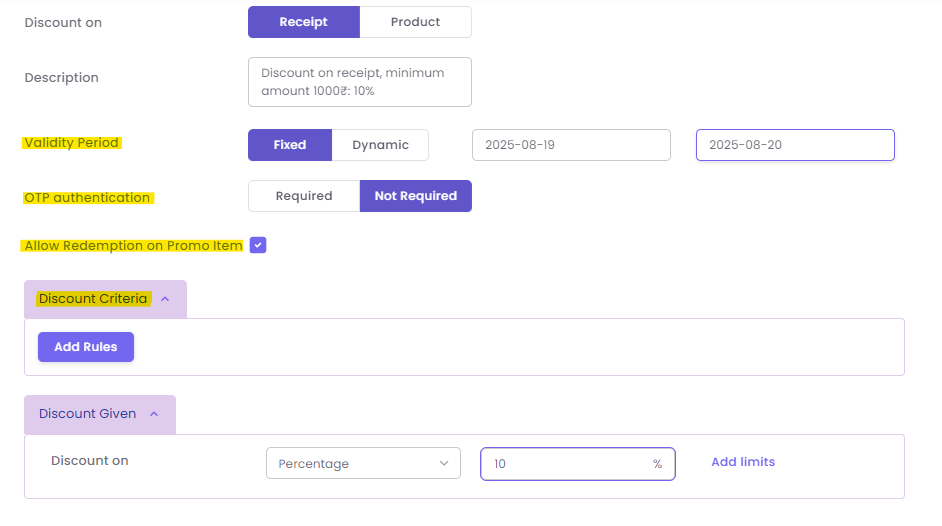
Validity Period: Set the start and end dates for the coupon.
-
OTP Authentication: (Optional) Check this box if you require a one-time password at the POS for redemption, adding a layer of security.
-
Step 3: Configure Additional Settings:
-
Validity: Choose Fixed (e.g., valid from Oct 1 to Oct 31) or Dynamic (e.g., "Valid for 30 days from the date of issue").
-
Redemption on Promo Item: Check this to allow customers to use this coupon on items that are already on sale.
-
Rules of Discount Criteria: Add specific rules, such as limiting the coupon to a specific product category, brand, or customer tier.
Click Save to create the coupon template.