Accessing and Understanding the Reports
This report is divided into two main tabs:
-
Customer Visits: A high-level visual dashboard of visit frequency, retention, and timing.
-
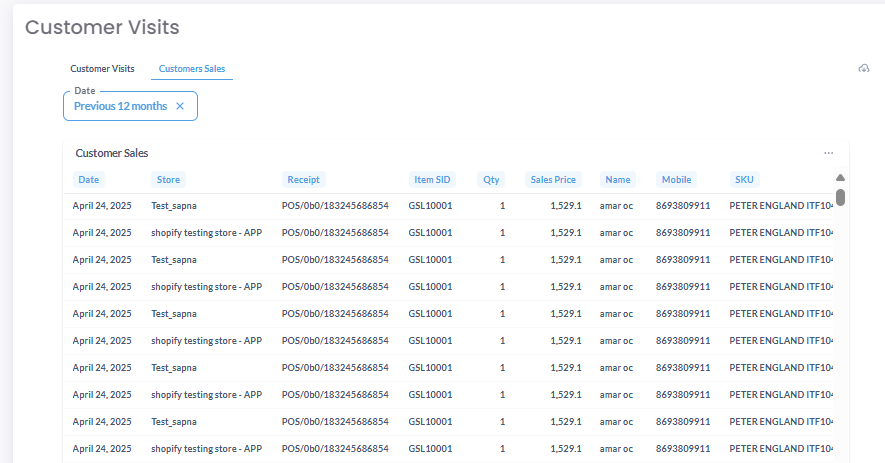
Customers Sales: A granular, row-by-row table of every individual transaction.
Access and Filter the Report
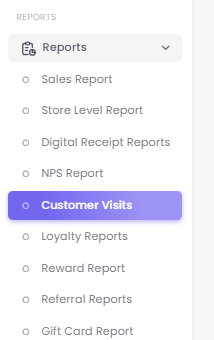
Step 1: Navigate to the Report
Step 2: Apply Filters
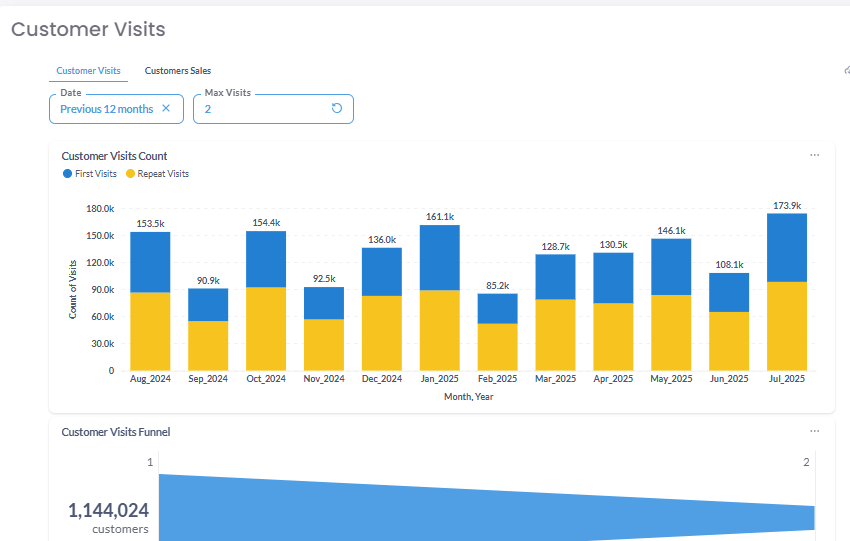
At the top of the report, you will find filters to customize your data. Common filters include:
-
Date Range: The time period you wish to analyze.
-
Store/Zone: To isolate data for specific locations.
-
Max Visits: This important filter controls the depth of the Customer Visits Funnel (e.g., a value of '3' will show the funnel from Visit 1 -> Visit 2 -> Visit 3).
Understanding the "Customer Visits" Tab
This tab provides a visual overview of your customers' visit frequency and repeat behavior. It typically contains three main charts:
A. Customer Visits Count (Stacked Bar Chart)
This stacked bar chart displays a month-by-month breakdown of First Visits (new customers) and Repeat Visits (returning customers). This helps you visualize your customer acquisition and retention trends throughout the year.
B. Customer Visits Funnel
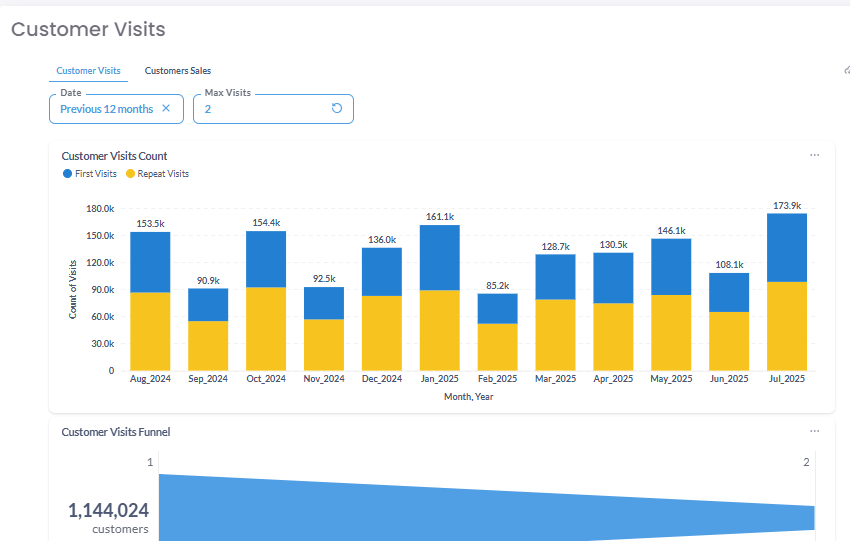
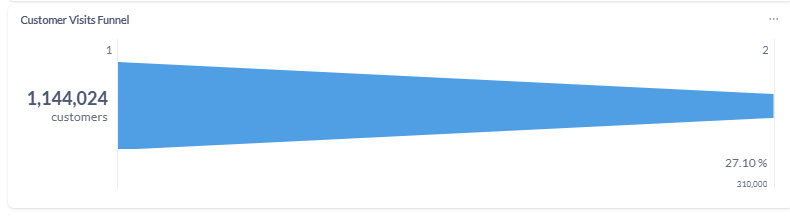
This funnel visualizes your customer retention rate between visits. For example, it might show that of the 1,144,024 customers who made a first visit, 310,000 (or 27.10%) returned for a second visit. This is a direct measure of your ability to create a repeat customer.
C. Intervals Chart
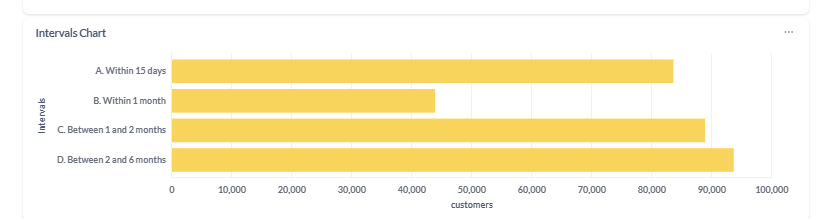
This chart shows the average time it takes for customers to make a repeat visit. It breaks down the number of customers who return within specific timeframes, such as "Within 15 days," "Between 15 and 30 days," or "Between 1 and 2 months."
Understanding the "Customers Sales" Tab
This tab provides a granular, transactional view of all individual sales that occurred within your selected date range.
Sales Data Table
The table lists every single transaction, with columns for customer details, date, amount, store, etc. This view is perfect for drilling down into specific sales data to investigate trends you spotted on the main "Customer Visits" tab.