
Creating a Simple Segment
Step 1: Navigate to Segments
Click the + Create a Segment button to start.
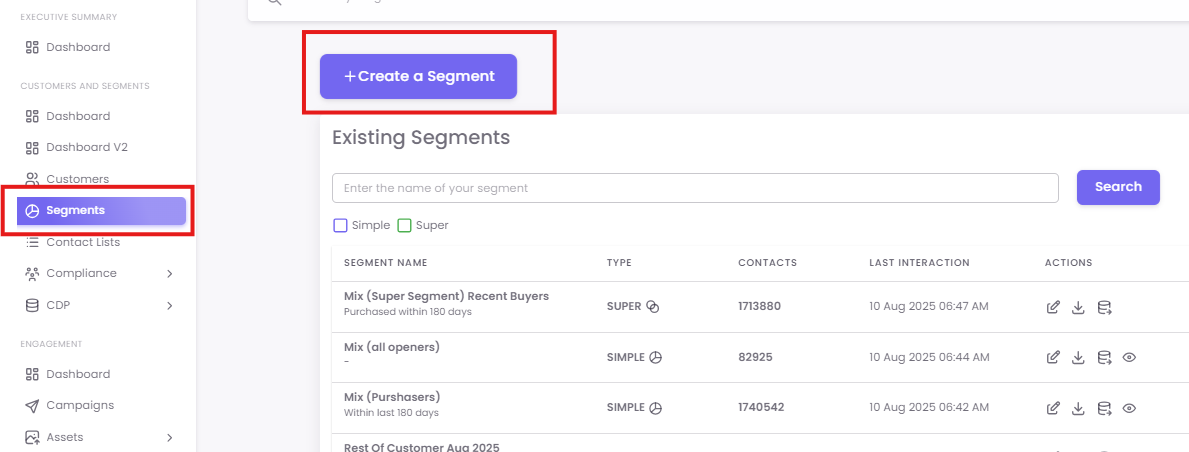
Step 2: Choose Your Segment Type
A pop-up will appear prompting you to choose between two segment types. Select Simple to build a new segment from scratch using specific filtering rules.

Step 3: Name and Describe Your Segment
Enter segment name: Use a clear and descriptive name that reflects the audience it contains (e.g., "High-Value Customers Q3," "Dormant Shoppers - 90 Days").
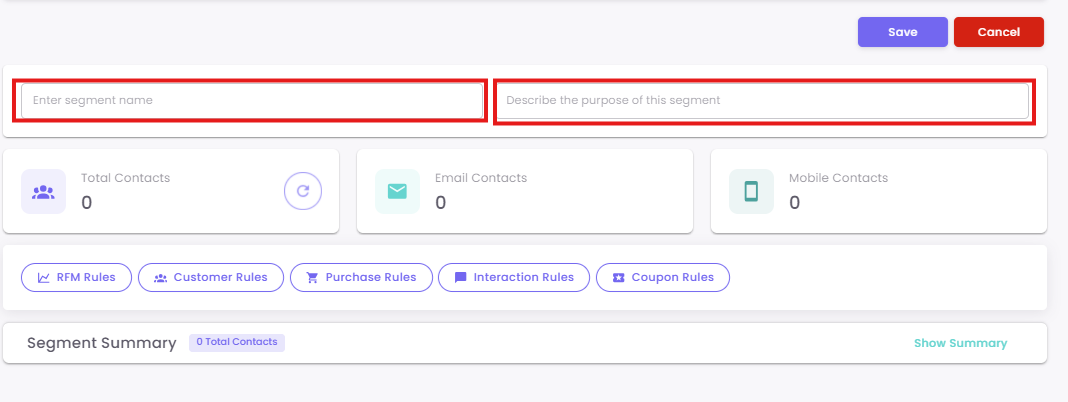
Step 4: Define Your Rules
This is where you build the logic for your segment. You can combine multiple rules using "AND" logic, meaning customers must meet all criteria to be included.
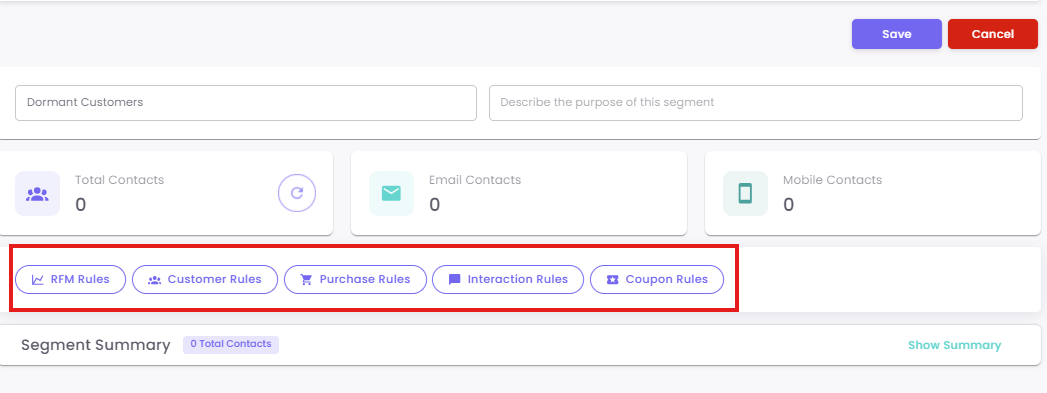
1. Customer Rules: Filter customers based on their profile, demographic, or loyalty program information.
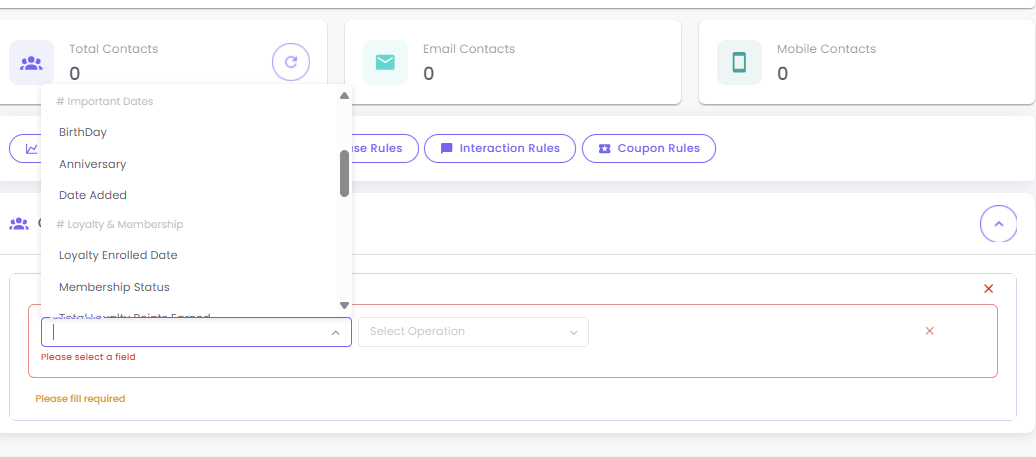

Available Fields Include: Gender, City, State, BirthDay, Anniversary, Membership Status, Loyalty Tier, and Gift Card Balance.
Explanation of Operators:
-
"Is in" – Includes customers matching any of the selected values (acts as OR)
-
"Is not in" – Excludes customers matching any of the selected values (acts as OR)
-
Other operators (e.g., Equals, does not equal) behave as expected
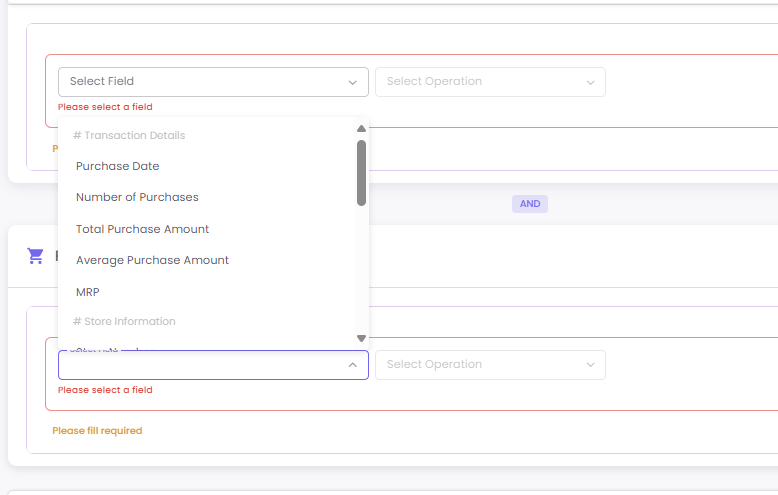
2. Purchase Rules: Segment users based on their transaction history, such as what they bought, where they bought it, and their spending habits.


-
Available Fields Include: Purchase Date, Total Purchase Amount, Store Number, SKU, Department, Vendor, and Days since last purchase.
Example: To identify recent high-spenders, you could combine two rules: Purchase Date within last 30 days AND Total Purchase Amount is greater than 5000.
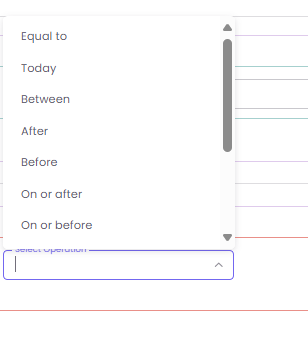
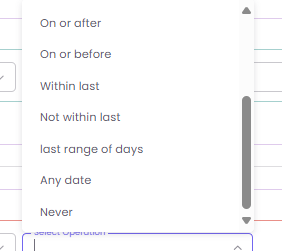
Date-based Rule Operators:
-
Equals – Matches purchases made on the exact selected date
-
Before / After – Purchases made before or after the selected date
-
Between – Purchases made within a defined date range
-
Within last – From today (Day 0) to the last X days
E.g., If today is July 6th and 'within last 5 days' is selected, the range will be July 1st to July 6th inclusive (July 6th referred as Day 0).
-
Not within last – Excludes purchases made in the last X days
E.g., If today is July 6th and 'not within last 5 days' is selected, the range will be July 1st to July 6th exclusive (July 6th referred as Day 0).
-
On or after / On or before – Includes the selected date and ranges accordingly
-
Last range of days – A sliding window based on two values
E.g., Last 3–6 days from today (July 20 which is Day0) includes purchases from July 14–17
-
Last not after – Filters recent purchases not made after the selected date
-
Last not before – Filters recent purchases not made before the selected date
-
Days since last purchase – Number of days since the most recent purchase
Department-based Rule Operators:
-
Is / Is not – Matches or excludes exact department names
-
Contains / Does not contain – Includes or excludes any matching text
E.g., Contains “Women” includes “Women Traditional Wear” , “Women Western Wear,” “Women Cosmetics”, etc.
-
Starts with / Ends with – Filters based on beginning or ending of department names
E.g., If the Product Name is “Women Traditional Wear”
Starts with “wom” includes “Women Traditional Wear”, “Women Western Wear”, “Women Cosmetics”, etc.
Ends with “ear” includes “Women Traditional Wear”, “Women Western Wear”, “Men Leg Wear”, “Kids Wear”, etc
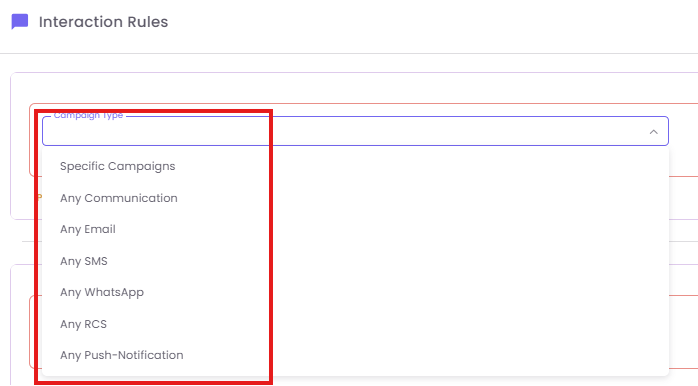
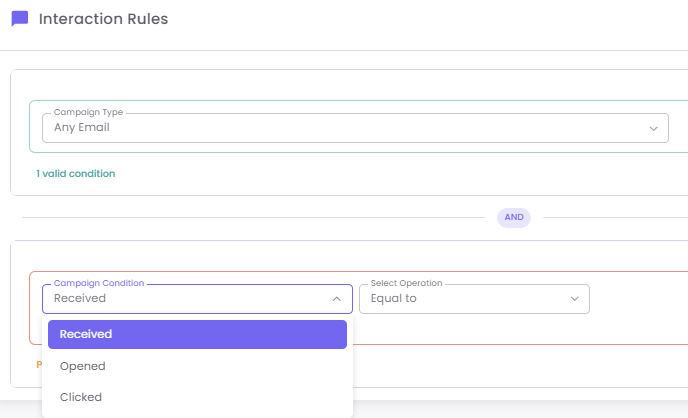
3. Interaction Rules: Segment customers based on their engagement with your past campaigns.
-
Select Campaign Type: Choose the scope of the interaction, such as Any Communication, Any Email, Any SMS, or Specific Campaigns.
-
Set Campaign Condition: Define the type of interaction you want to track: Received, Opened, or Clicked.
-
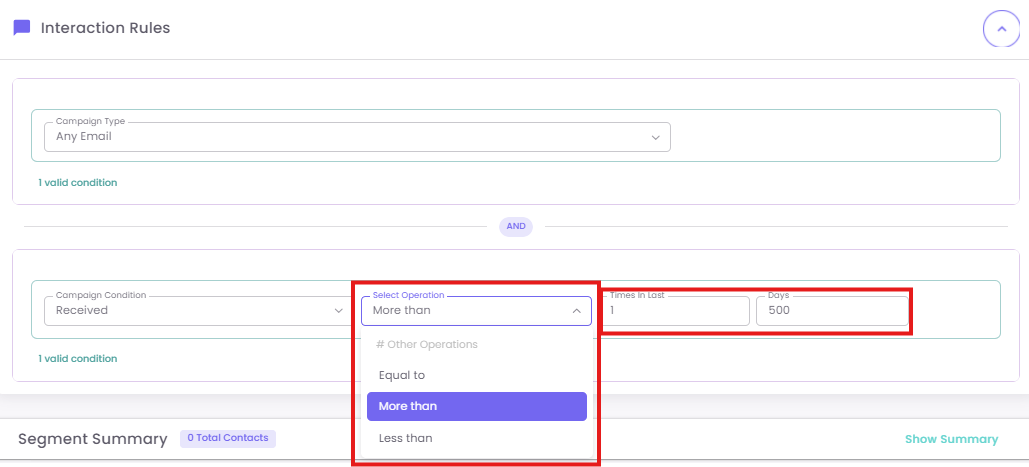
Define the Parameters: Quantify the condition using an operation (More than, Equal to, less than) and a timeframe (e.g., Times in Last X Days).
-
Example: To find customers who have opened any email more than twice in the last 60 days, you would set: Campaign Type = Any Email, Campaign Condition = Opened, Operation = More than, Times = 2, Days = 60. [Image showing the Interaction Rules interface]
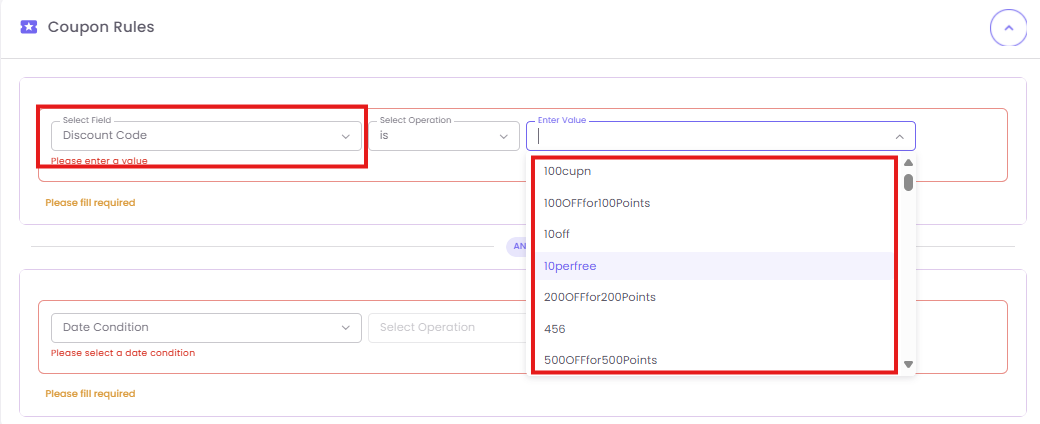
4. Coupon Rules: You can also add rules based on campaign engagement Coupon Rules to further refine your audience.

Step 5: Refresh and Save Your Segment
Once you have defined your rules, click the Refresh button (the circular arrow icon) the Customers Count. Click the Save button to store your segment.
