
Creating an RCS Campaign
Step 1: Navigate to Campaigns
From the main dashboard, select Campaigns from the left-hand navigation menu and click the +Create a Campaign button. 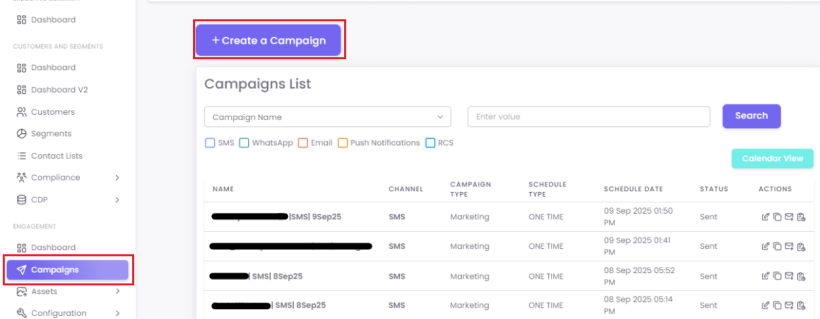
From the "Mode of Communication" options, select RCS to begin.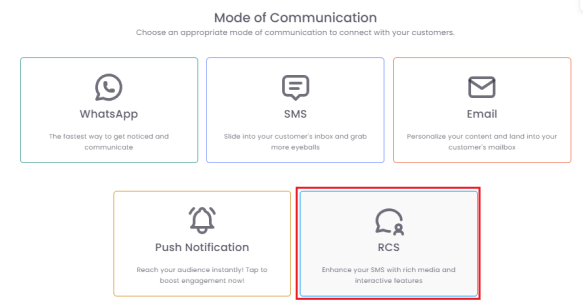
Step 2: Fill out Campaign Details
In the Campaign Details section, fill in the required information:
-
Campaign Name: Give your campaign a unique, descriptive name for internal reference.
-
Contact Source: Select the source of your contacts.
-
Message Template: Select a pre-approved message template.
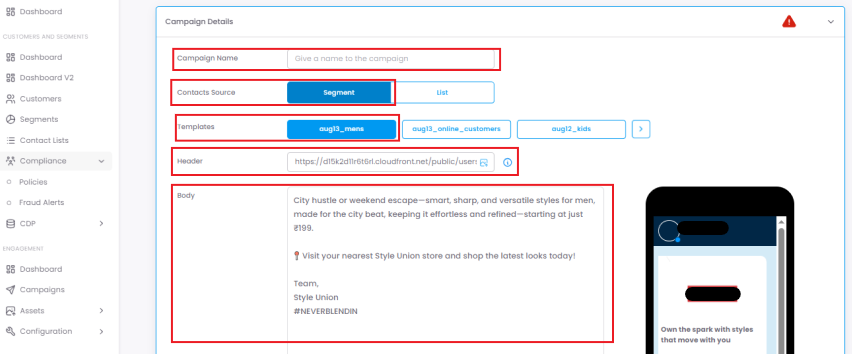
Once selected, the content will automatically populate the "Body" field, and a preview of your rich message will be visible. You can use the Send Test feature to preview the message on your device or click Next to proceed.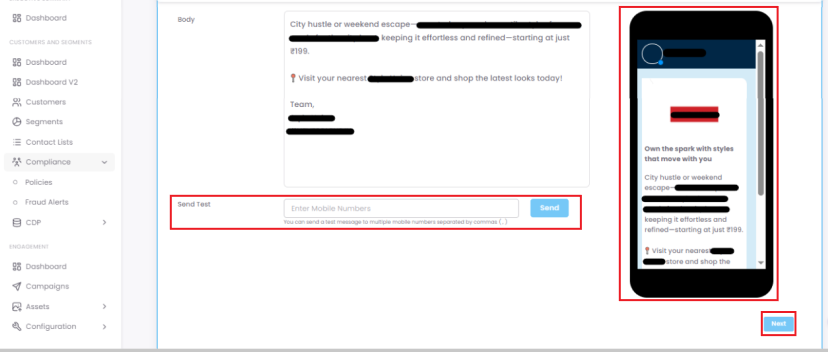
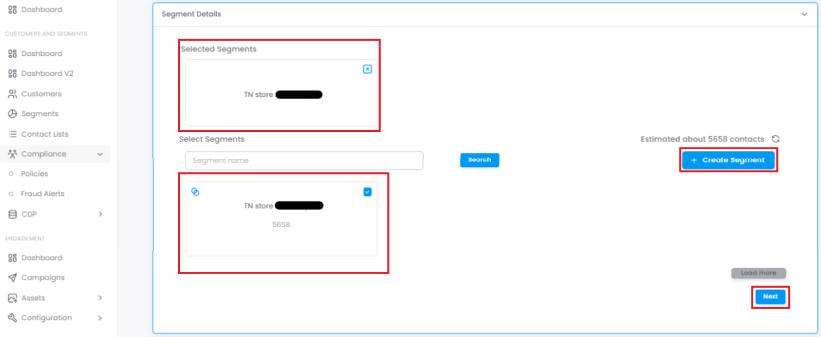
Step 3: Select Your Segment
Choose an existing segment of contacts or create a new one using the +Create Segment button. This defines the specific group of contacts who will receive your message. After making your selection, click Next.
Step 4: Schedule Your Campaign
In the Schedule Campaign section, choose your schedule type:
- One Time: Sends the campaign once at a fixed date and time.
- Recurring: Sends the campaign repeatedly on a daily, weekly, monthly, or yearly basis.

-
-
Ramp up: This feature helps you divide your chosen segment into smaller batches of unique contacts. You set a "Send Volume" (number of contacts per batch) and the system sends the same campaign to each batch over a period.
-
For example, to send to 10,000 contacts over 5 days, you can choose Daily, set the dates, enable send rate ramp up, and enter a Send Volume of 2,000. The system will send to 2,000 unique contacts each day until all 10,000 are covered.
-
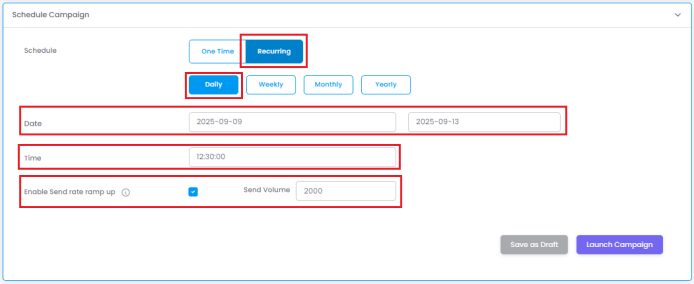
b. Recurring: Campaign can be sent repeatedly, for example, on daily, weekly, monthly and yearly basis.
Step 5: Launch or Save
RampOnce upyour - this feature helps you divide the chosen segment into small batches of unique contacts (thisschedule is done by entering a Send Volume) and send the same campaign to each of those batches.
For example, a segment consists of 10,000 contacts. If you want to send the campaign daily for 5 days such that the campaign reaches to all 10,000 contacts exactly once, you choose Daily, specify From and To dates, enable the send rate ramp up, and enter the send volume as 2,000. By doing this, the system will pick 2,000 unique contacts from the chosen segment and send the campaign until all the contacts have been covered.
5. Once you've chosen your schedule,set, you can eithereither:
-
Click Save as Draft
ortoLaunchreturnCampaign.toClickingit later. -
Click Launch Campaign
savesto save the campaign andsendsschedule it for delivery at thescheduledchosen time.
Best Practices and Common Use CasesRCS enhances SMS with branding, interactive features, and multimedia capabilities. Following best practices and understanding common use cases can help you create effective campaigns.Best PracticesCreate Compelling Content: RCS messages can include rich media like high-quality images, videos, and GIFs, which makes them more engaging than plain text.Personalize and Segment: Segment your audience to send them relevant messages. Personalizing messages with customer data can also help increase engagement.Include a Clear Call to Action (CTA): Use interactive elements like buttons and quick replies to guide users and make it easy for them to take a desired action, such as "Shop Now" or "Book Appointment".Maintain Brand Identity: RCS messages can be branded with your company's name, logo, and colors, which helps build trust and recognition.Optimize and Analyze: Regularly test different message formats, visuals, and CTAs. Use analytics to track key metrics like delivery rates, open rates, and conversion rates to optimize your campaigns.
Common Use CasesPromotional Campaigns: Transform promotions into interactive experiences with swipe-through carousels and buttons. RCS messages can be used for promotions and flash sales, showcasing products with images and discounts.Transactional Notifications: Send real-time updates for order confirmations, shipping status, and delivery notifications. You can include interactive elements like a "Track Package" button or maps to show the courier's real-time route.Customer Support: RCS can be used to resolve common issues through chatbots or enable two-way conversations with customers for faster support.Feedback Requests: Use RCS to send interactive surveys and gather customer insights with quick-response buttons.Appointment Reminders: Send branded appointment reminders with interactive buttons like "Confirm" or "Reschedule" to reduce no-shows.
TroubleshootingIf your RCS messages are not being delivered, consider these troubleshooting steps:Check Recipient Compatibility: The recipient's device must be compatible with RCS and have the feature enabled. Both parties need to have a compatible phone and up-to-date messaging app and software.Verify Connectivity: RCS requires a stable internet connection (Wi-Fi or mobile data).Check Campaign Status: Ensure the campaign was successfully launched and not saved as a draft.Review Mobile Number Validity: A message may not be sent if the mobile number is invalid or contains non-numeric characters.Check for Service Provider Errors: Some issues may be caused by the service provider, such as the user ID not being allowlisted.Check Your Messaging App: Make sure your messaging app and Google Play Services are updated to the latest versions. If issues persist, try clearing the app's storage and restarting it.