Creating a Carousel Template
A Carousel template allows you to showcase multiple products or services in an interactive, horizontal scrollable view, requiring a minimum of two cards.
Step 1: Select Carousel Message Type
-
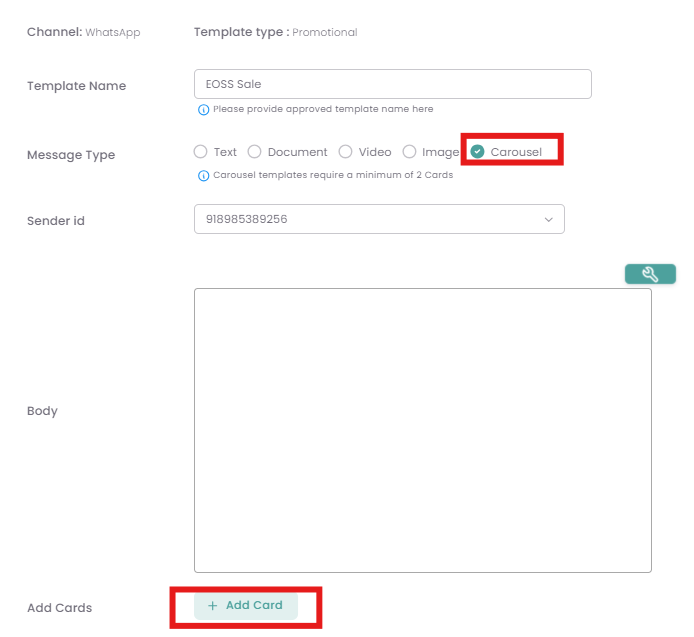
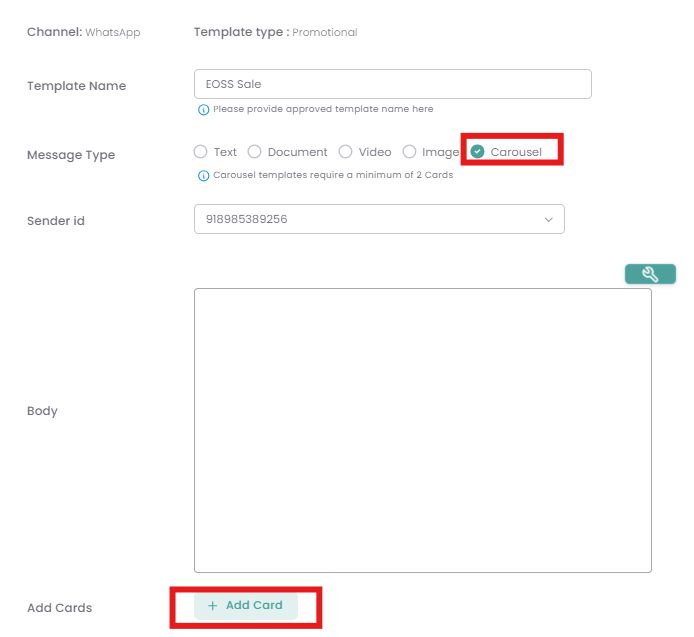
In the Add Template screen, under Message Type, select Carousel (highlighted).
-
The interface will update to show an Add Cards button.
Step 2: Add and Configure Cards
-
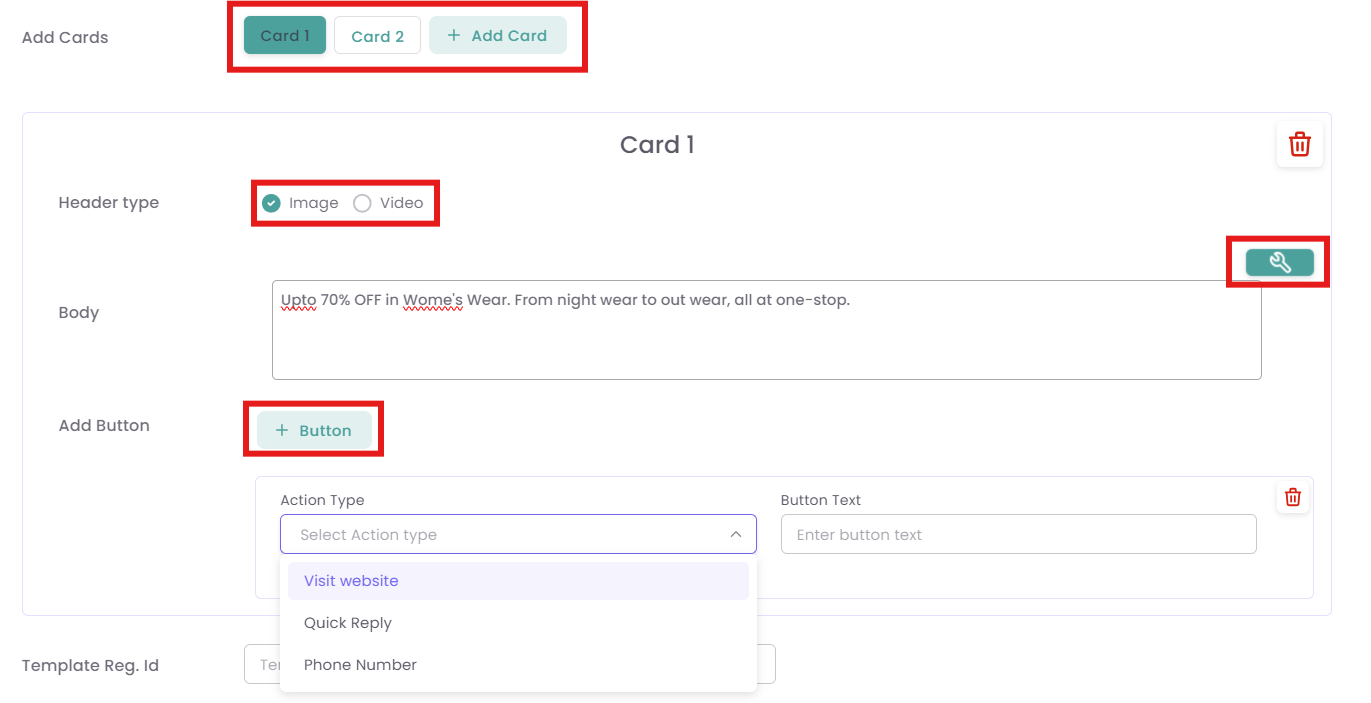
Click the + Add Card button.
-
You can add multiple cards (e.g., Card 1, Card 2).
-
For each card:
-
-
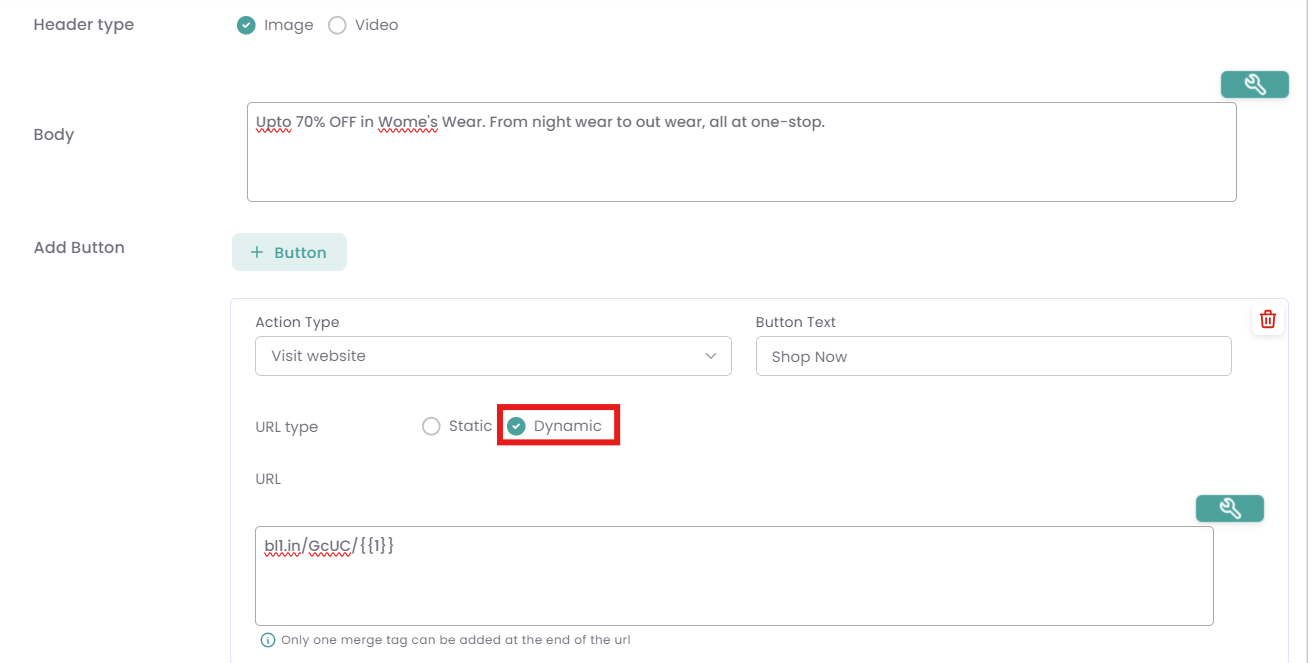
Header type: Select Image or Video to feature media prominently.
-
Body: Enter the descriptive text for the item featured in the card (e.g., Upto 70% OFF in Women's Wear...).
-
Add Button: Click + Button to add an interactive Call-to-Action (CTA).
-
Action Type: Select a button action, such as Visit website, Quick Reply, or Phone Number.
-
Button Text: Enter the visible text on the button (e.g., Shop Now).
-
Step3: Using DynamicFor URLs for Click Tracking
You can use Dynamic URLs to track which specific customers clicked a link within your campaign, improving campaign analytics.
-
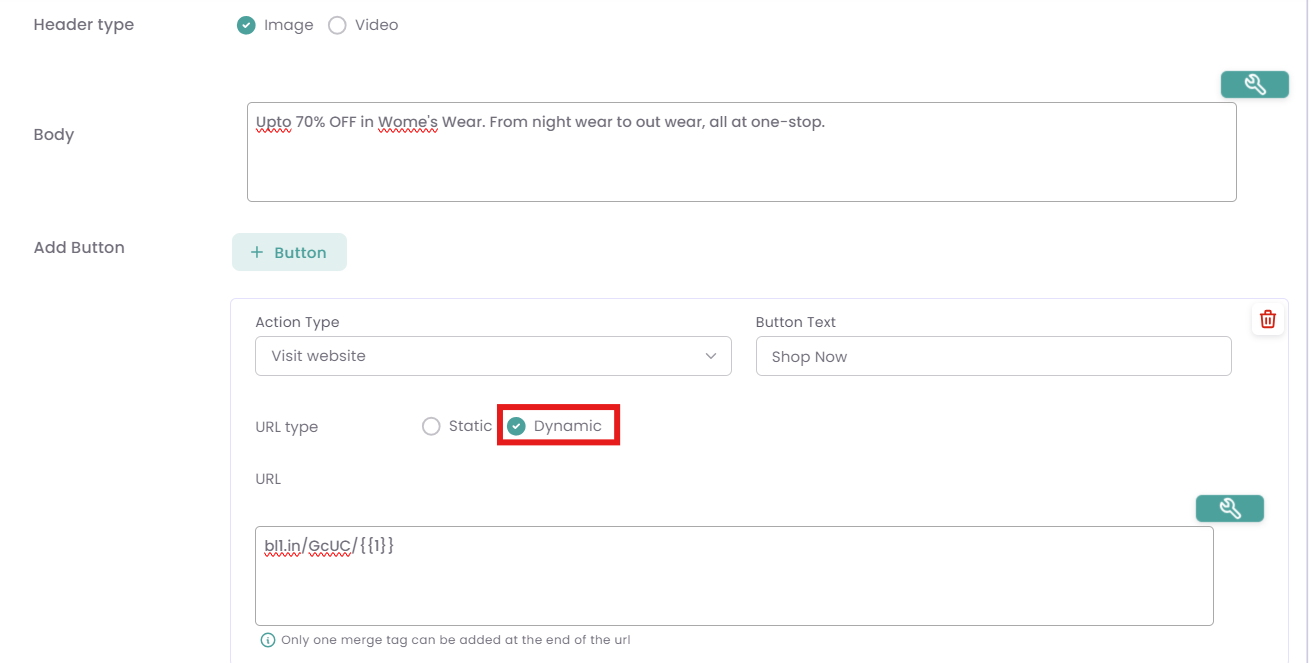
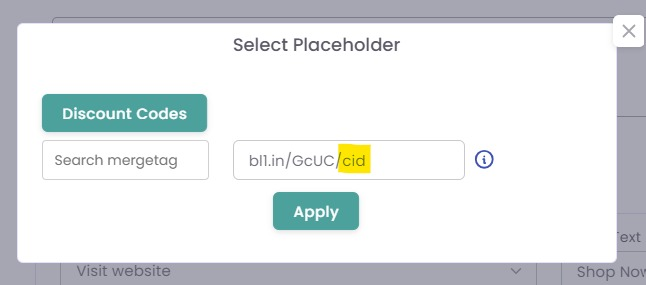
When configuring a Visit website button, select the Dynamic URL type.
-
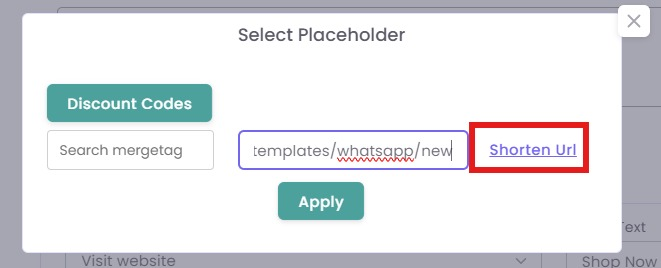
Click the search/placeholder icon next to the URL field.
-
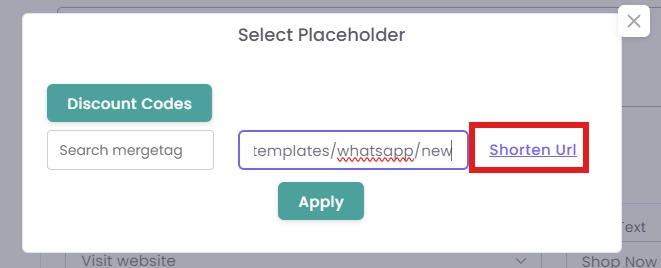
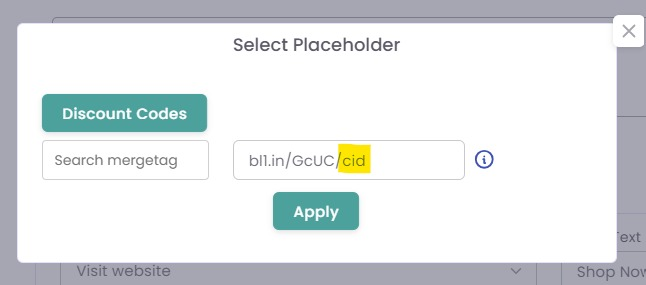
In the pop-up, paste your base URL.
-
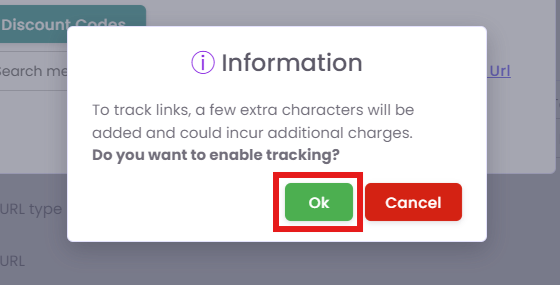
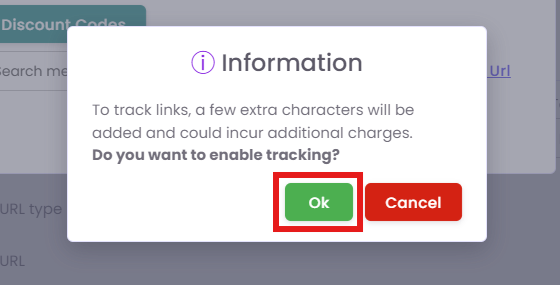
Click Shorten Url if your platform's tracking requires it.
-
After shortening, you will see a unique placeholder (e.g.,
{{1}}for a merge tag) appended to the shortened URL (e.g.,bll.in/GcUc{{1}}). This placeholder is typically for a Customer ID (CID) or similar tracking variable. -
Click Apply. The resulting URL in the button configuration will contain the tracking placeholder.
Step 4: Save the Template
-
Review all the entered information, especially the message body and merge tags.
-
Click the Save button to finalize and store your SMS template.