Step-by-Step Setup Guide
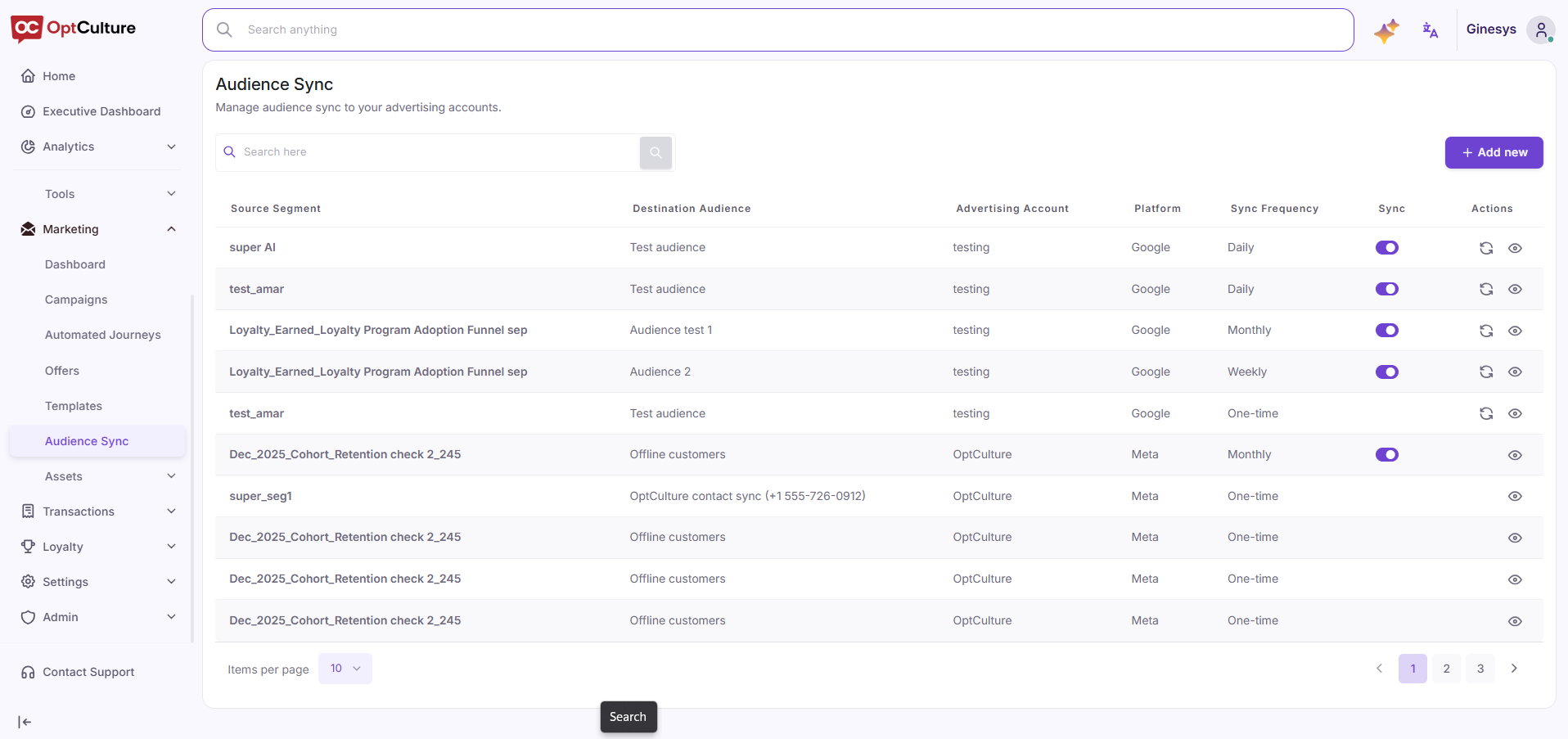
Step 1: Access the Audience Sync Dashboard
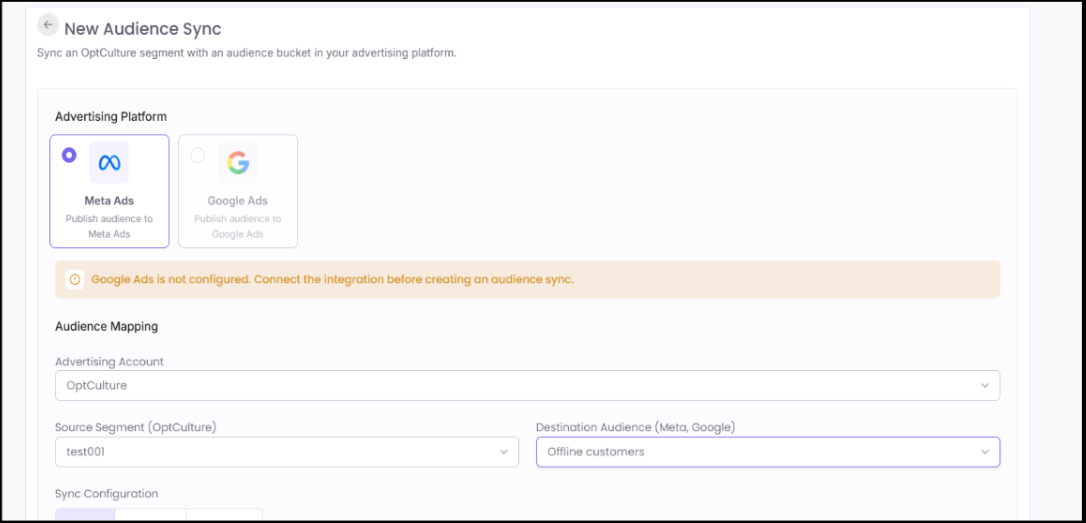
Step 2: Select Advertising Platform & Account
-
Choose your target platform by selecting either the Meta Ads or Google Ads card. Under Audience Mapping, select your target Advertising Account from the dropdown menu.
Step 3: Map Source Segment to Destination Audience
-
Select your OptCulture customer segment from the Source Segment (OptCulture) dropdown. Next, pick your target custom audience from the Destination Audience (Meta, Google) dropdown.
Step 4: Configure Sync Schedule & Activate
-
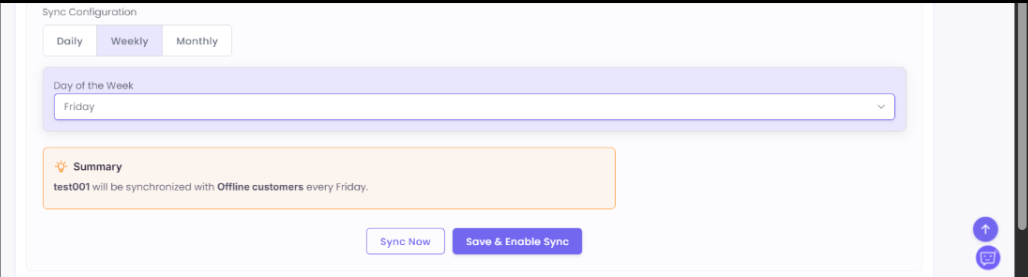
Select your preferred schedule under Sync Configuration:
-
Daily: Synchronizes audience data automatically every 24 hours.
-
Weekly: Pick the target day of the week (e.g., Friday) from the dropdown menu.
-
Monthly: Select the specific day of the month for execution.
-
Step 5: Confirm and Save Sync Rule
-
Review the automated rule summary inside the Summary callout box. Click Save & Enable Sync to turn on recurring automated updates, or click Sync Now to perform an immediate manual sync.