Create Your Gift Card Program
Prerequisite: Create Gift Card Items in Your POS
Before you begin, you must ensure that the gift card items (e.g., "Gift Card 500," "Birthday Gift Card 2000") have been created with unique item codes in your store's POS/inventory system. This is the most critical step for the sync to work.
Step 1: Navigate to the Gift Card Program
From the main OptCulture menu, click on Programs.
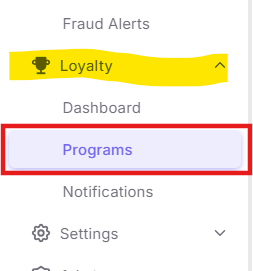
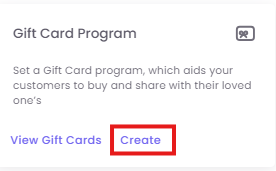
In the Programs dashboard, click on the Gift Card Program box.
Click the Create button to start a new program.
Step 2: Configure Program Settings
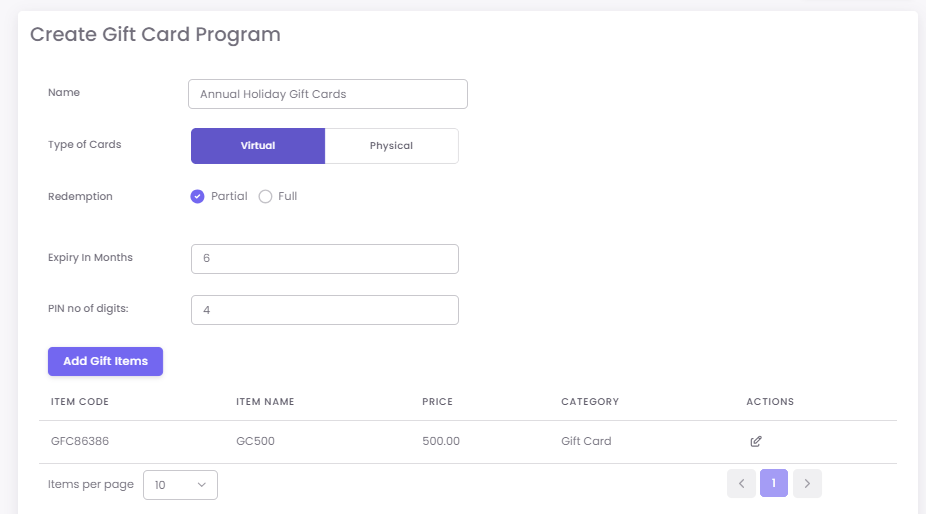
You will be taken to the "Create Gift Card Program" screen. Fill in the following details:

-
Name: Give your program a clear name (e.g., "2024 Holiday Gift Card Program").
-
Type of Cards: Choose one:
-
Virtual: Cards are generated by OptCulture and sent digitally (via WhatsApp, Email, etc.) to customers.
-
Physical: Used if you have pre-printed physical cards. The card numbers must be uploaded into OptCulture before the program starts.
-
-
Redemption: Select how the card value can be used.
-
Full: The entire card value must be used in a single transaction. No balance is carried forward.
-
Partial: Only the purchase amount is deducted. The remaining balance can be used for future transactions (Recommended).
-
-
Expiry In Months: Set the validity period for the gift cards (e.g.,
6or12months). -
PIN no of digits: Set the length of the secure PIN that will be generated with each card (e.g.,
4or6digits).
Step 3: Add Gift Card Items
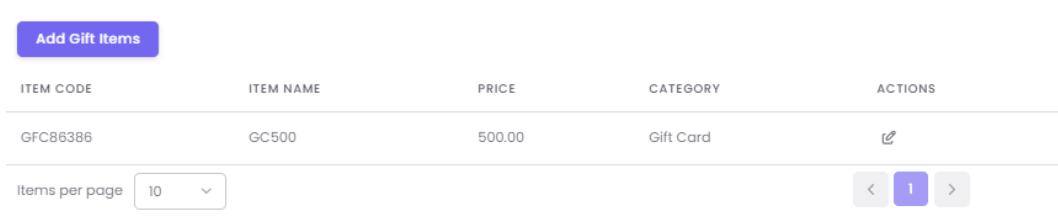
This step links your OptCulture program to the items in your POS.
-
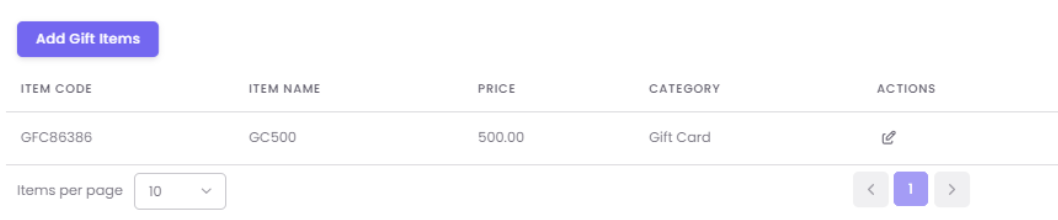
Click the Add Gift Items button.
-
Enter the exact details for each gift card denomination as they appear in your POS:
-
Gift Item Code: The exact SKU or item code from your POS (e.g.,
GC500). -
Category: The category this item belongs to (e.g., "Gift Cards").
-
Gift Item Name: The name of the item (e.g., "Gift Card 500").
-
Price: The value of the card (e.g.,
500).
-
-
Repeat this for every denomination you offer (e.g., 1000, 2000, 5000).
-
Once all items are added, click SAVE PROGRAM.