Step-by-Step Guide: Using & Customizing the Home Screen
-
Log in to your OptCulture account.
-
Click the Home / Dashboard icon on the left sidebar navigation.
-
View the top KPI Banner to review aggregate metrics and trend percentages relative to the last 30 days


Step 2: Customizing the Layout via Dashboard Builder
-
Click the Edit Dashboard button (pencil icon) located at the top-right corner of the Home Screen.
-
Reorder Widgets: Click and drag widget headers to adjust positioning.
-
Add/Remove Modules: Toggle visibility for default components such as Onboarding Progress Tracker, Top Departments, or RFM Customer Segments.
-
Click Save Configuration to apply changes.


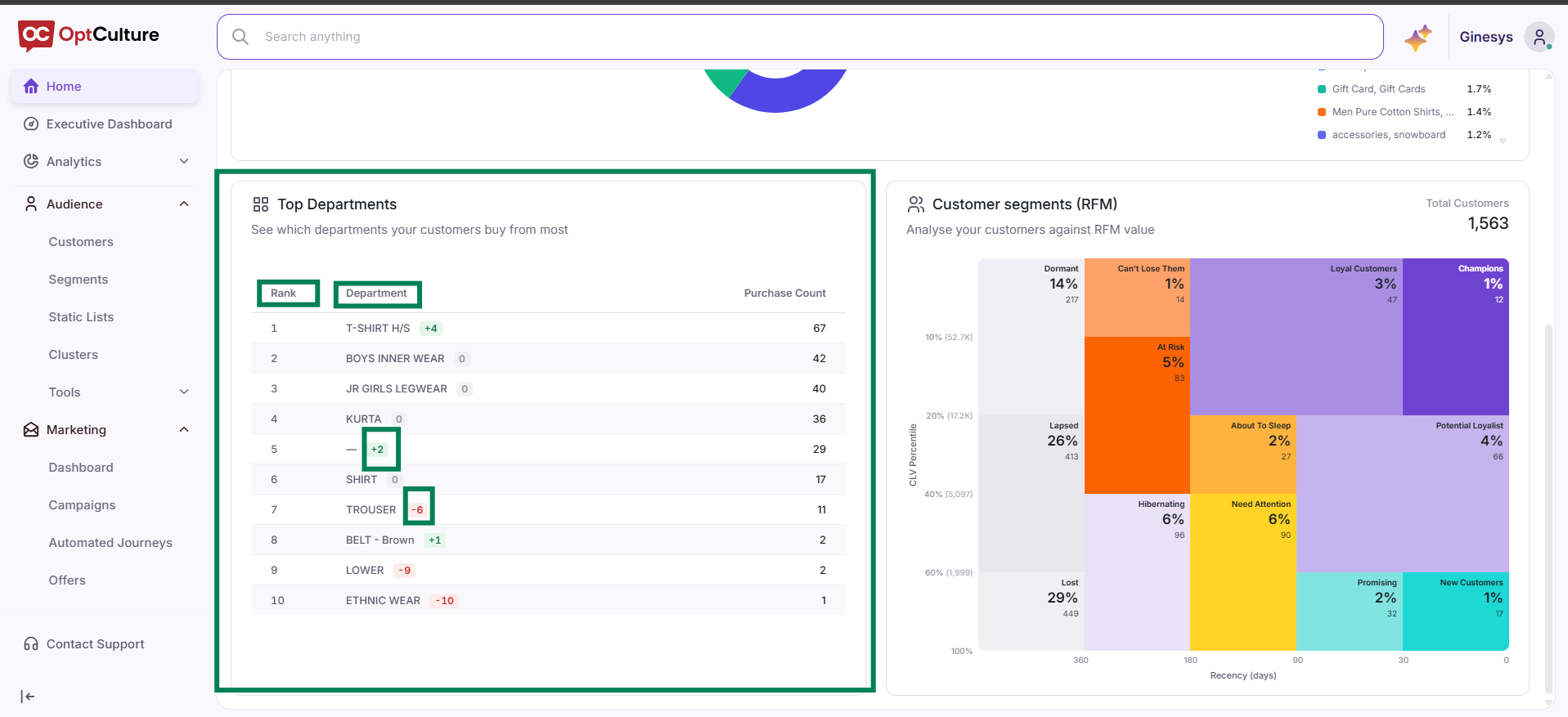
Step 3: Analyzing Top Departments
Step 4: Interacting with Customer RFM Segment
-
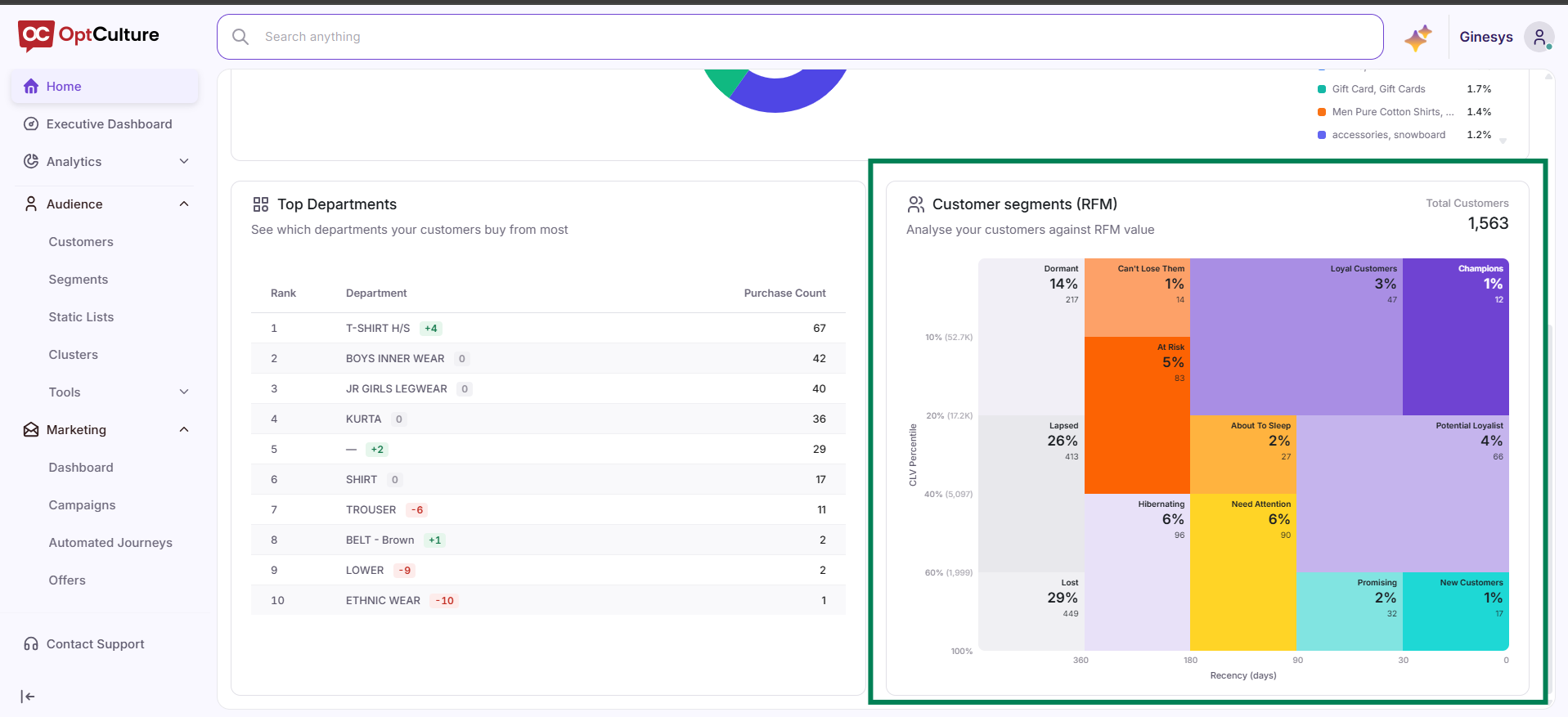
Locate the Customer Segments (RFM) widget.
-
Observe the total customer population figure at the top right.
-
Hover over or click on any segment block (e.g., At Risk, Champions, About To Sleep) to review total member counts and market share percentages.