Step-by-Step Guide: Accessing and Managing Punch Cards
-
Log in to your OptCulture account workspace.
-
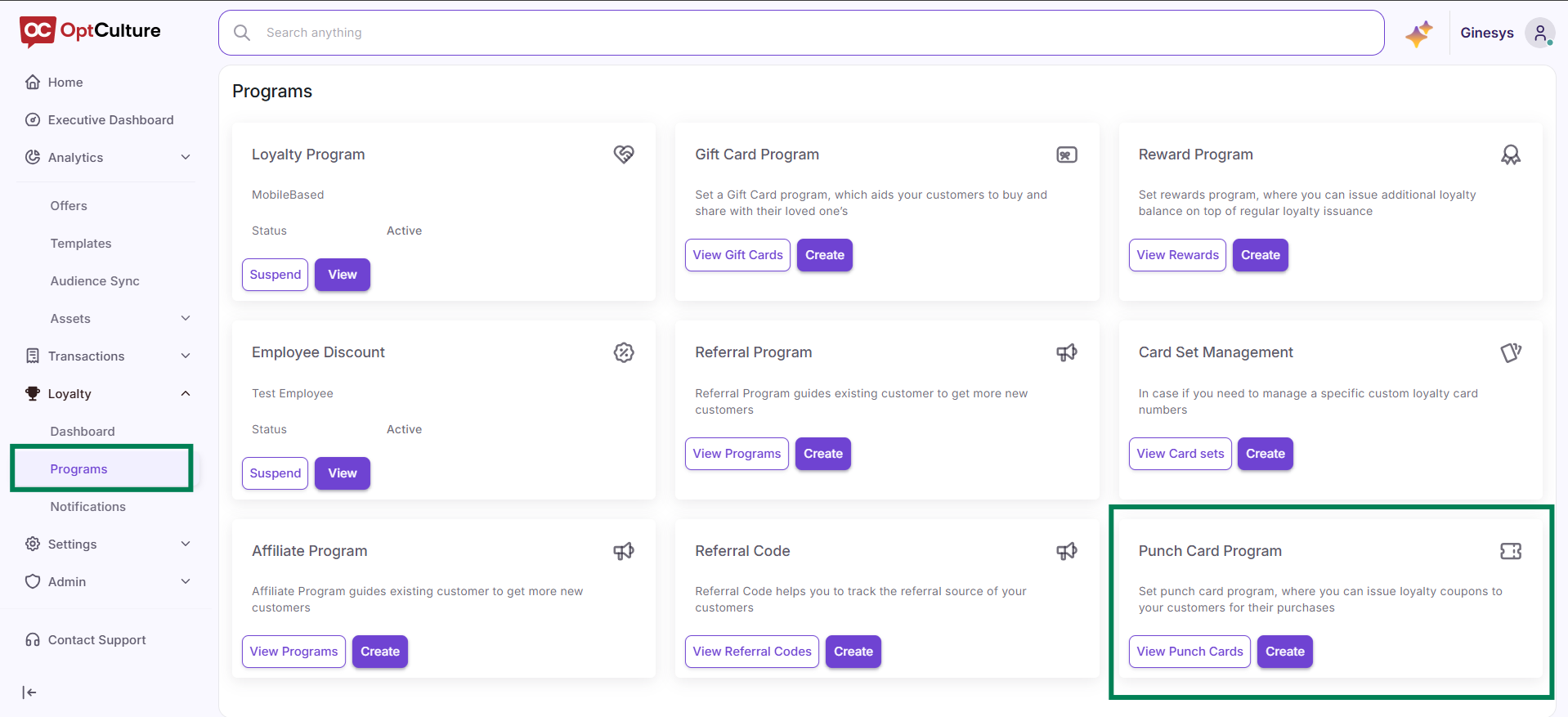
Click the Loyalty / Programs icon on the left primary navigation sidebar.
-
Check your baseline metrics on the KPI Banner (such as Repeat Sales and Redemption Rate) to establish benchmarks before launching a new punch campaign.
Step 2: Customizing Your Program Dashboard View
-
Select the Edit Dashboard button (pencil icon) in the top-right corner of your dashboard.
-
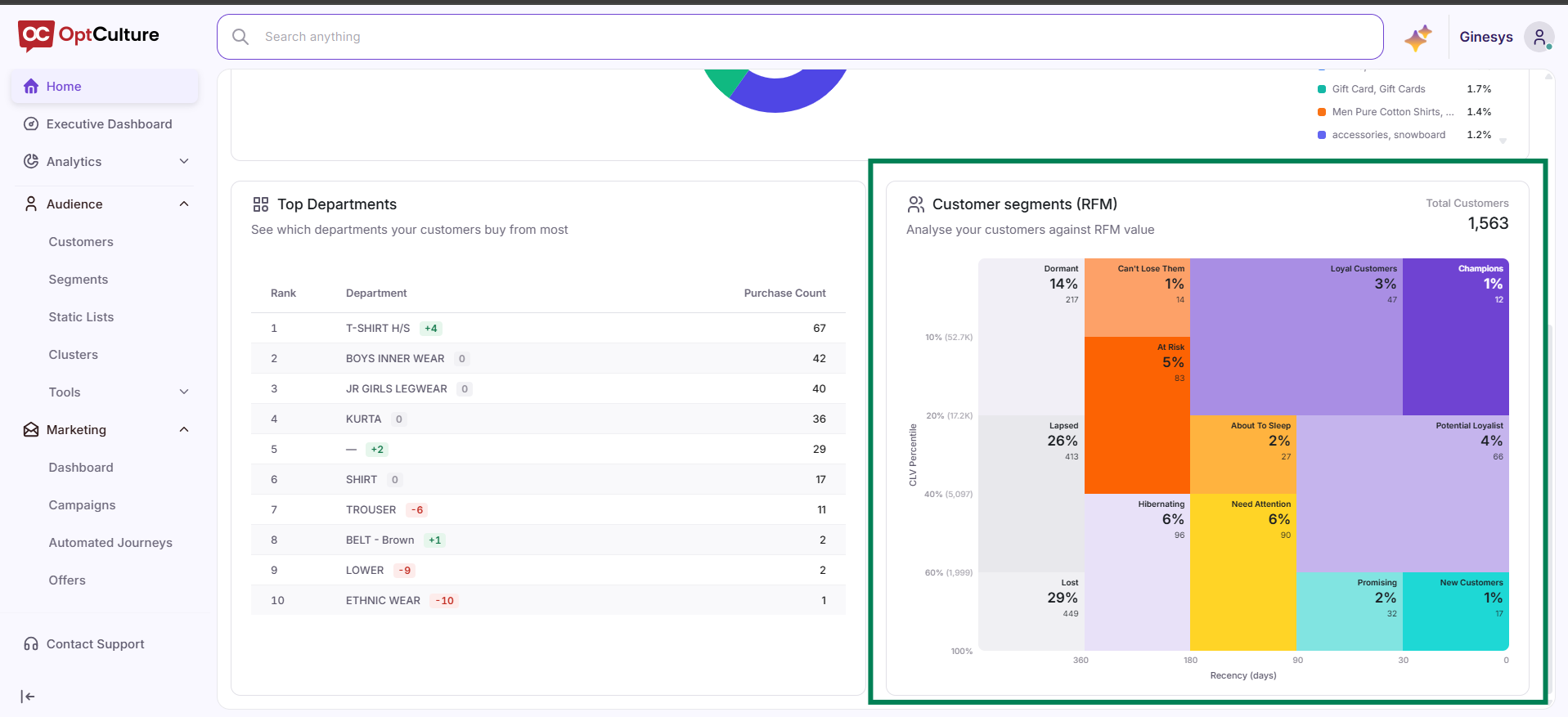
Drag and rearrange modules to place the Customer Segments (RFM) treemap and Top Departments grid side-by-side.
-
Click Save Configuration to store your operational layout.

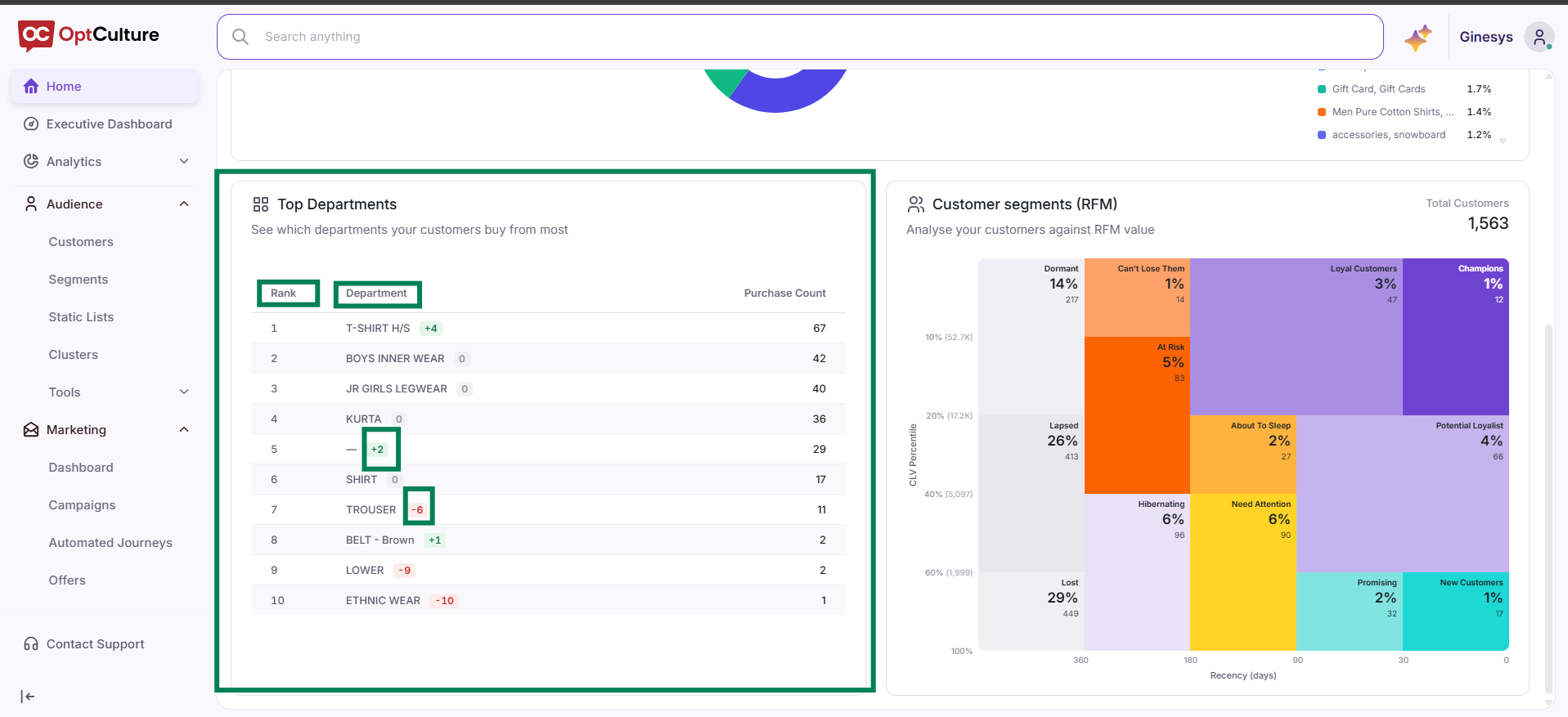
Step 3: Aligning Punch Cards with Top Departments
Step 4: Connecting Punch Cards to Customer RFM Segments
-
Go to the Customer Segments (RFM) widget.
-
Select target segments for your punch promotion—such as Need Attention (3%) or At Risk (29%).
-
Set the reward logic (e.g., "Complete 5 punches to earn a 20% discount coupon") to encourage repeat visits back into store locations.