
Create a Reward Program
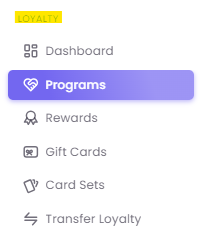
Step 1: Navigating to Reward Program
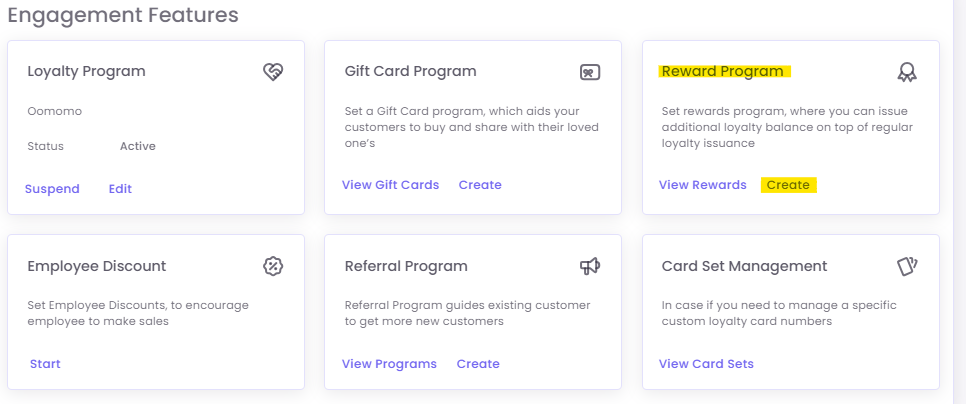
Click the Create button in the top-right corner.
Step 2: Define the Reward Details
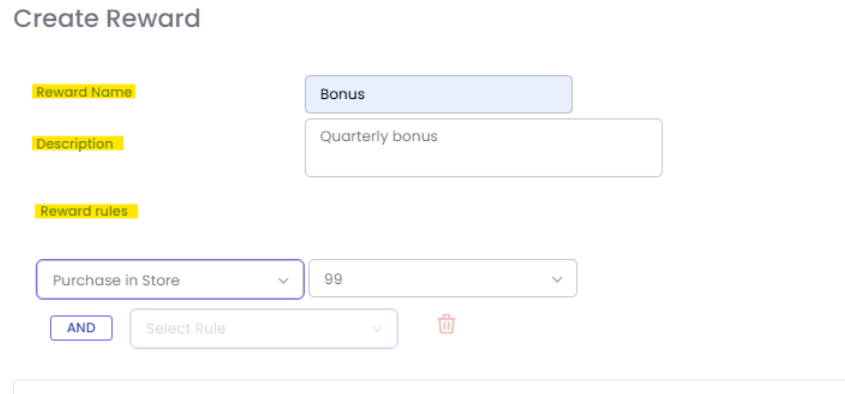
On the "Create Reward" page, fill in the basic information for your new reward.
-
Reward Name: A clear, internal name (e.g., "Weekend 2x Points Bonus").
-
Description: An internal note to help your team understand the reward's purpose (e.g., "Drives traffic on Saturdays & Sundays for high-value carts").
Step 3: Set the Reward Rules (The "IF" Condition)
Reward rules determine the conditions a customer must meet to receive the bonus.
-
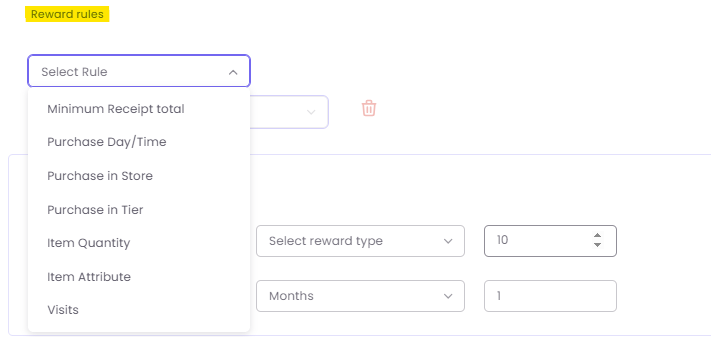
Under "Reward rules," click on the "Select Rule" dropdown.
-
Choose a rule from the list. Common rules include:
-
Minimum Receipt total: The customer must spend over a certain amount.
-
Purchase Day/Time: The purchase must be on a specific day (e.g., Tuesday).
-
Purchase in Store: The transaction must happen at a specific physical location.
-
Purchase in Tier: The customer must belong to a specific loyalty tier (e.g., "Gold").
-
Item Quantity: The customer must purchase a certain number of items.
-
Item Attribute: The item must have a specific attribute (e.g., from a certain category or brand)
-
Pro-Tip: Combining Rules
You can combine multiple rules using the AND button. This means the customer must meet all the conditions to get the reward.
Example:
-
Rule 1: Purchase Day/Time = "Saturday"
-
AND
-
Rule 2: Minimum Receipt total > "100"
Step 4: Configure the Reward Benefit (The "THEN" Benefit)
This is where you define the value of the reward itself.
-
Under "Reward Benefit," select the "Additional Reward" type.
-
Choose the Multiplier option. This will issue a bonus balance that is a multiple of the customer's base loyalty points for that single transaction.
-
Enter a value in the "Enter value" field.
-
Set the Reward Expiry period (e.g., 3 Months). This applies only to the bonus points

Step 5: Finalize and Save the Reward
-
Click on Additional Settings to expand the final options.
-
Enter the "Issuance window (hours)." This defines the specific time of day the purchase must be made. For example, for a "Happy Hour" reward, you would enter
16:00and18:00. -
Once all details are correct, click Save Reward to activate the program, or click Save as Draft if you are not ready to launch it.
