Part 4: Interacting with Loyalty, Coupons, and Timeline
A. Loyalty Panel:
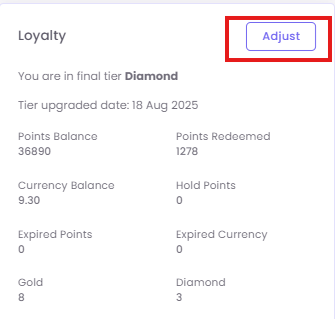
This section shows a complete overview of the customer's loyalty status.
-
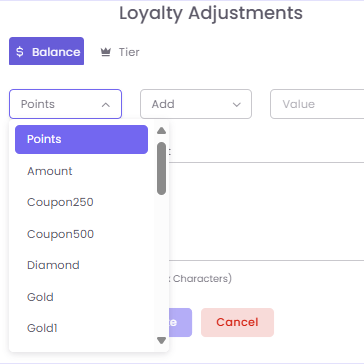
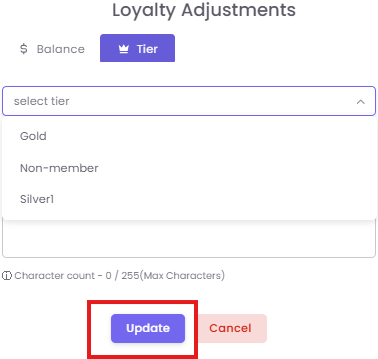
Loyalty Adjustments: Click the Adjust button to modify a customer's loyalty account. A pop-up will allow you to adjust. Click Update to save the changes.
B. Coupons Panel:
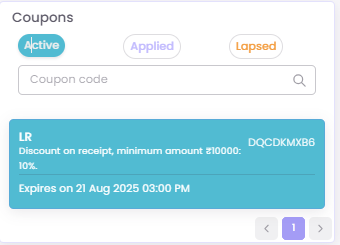
View all coupons associated with the customer, organized into Active, Applied, and Lapsed tabs.
-
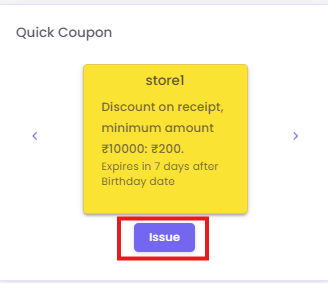
Quick Coupon Issuance: Manually assign a pre-existing coupon directly to the customer via Quick Coupon and click Issue.
C. Customer Timeline:
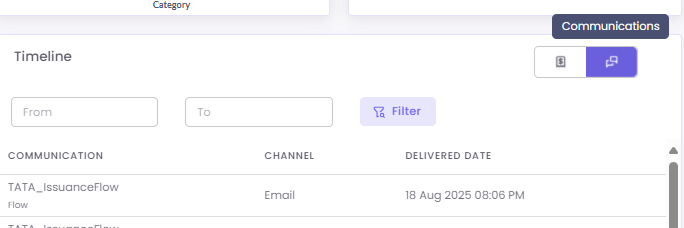
This provides a chronological log of every interaction, including Enrollment and Purchase events.
-
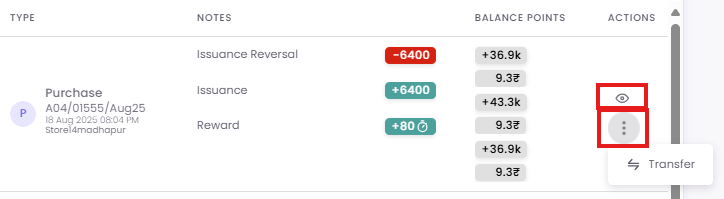
You can view the details of a specific purchase by clicking the eye icon in the Actions column.
-
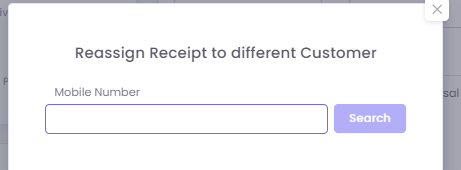
You can Transfer the specific purchase by clicking on 3 dots in the Actions column.
-
You can also view a log of all past marketing Communications sent to the customer by clicking the message icon.
D. Referrals Panel:
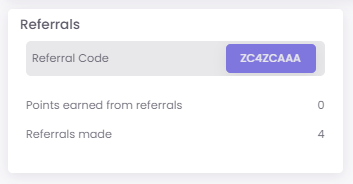
Track the customer's participation in your referral program, including their unique Referral Code, Points earned from referrals, and the total number of Referrals made.