Creating an AI Segment
Step 1: Navigate to Segments
-
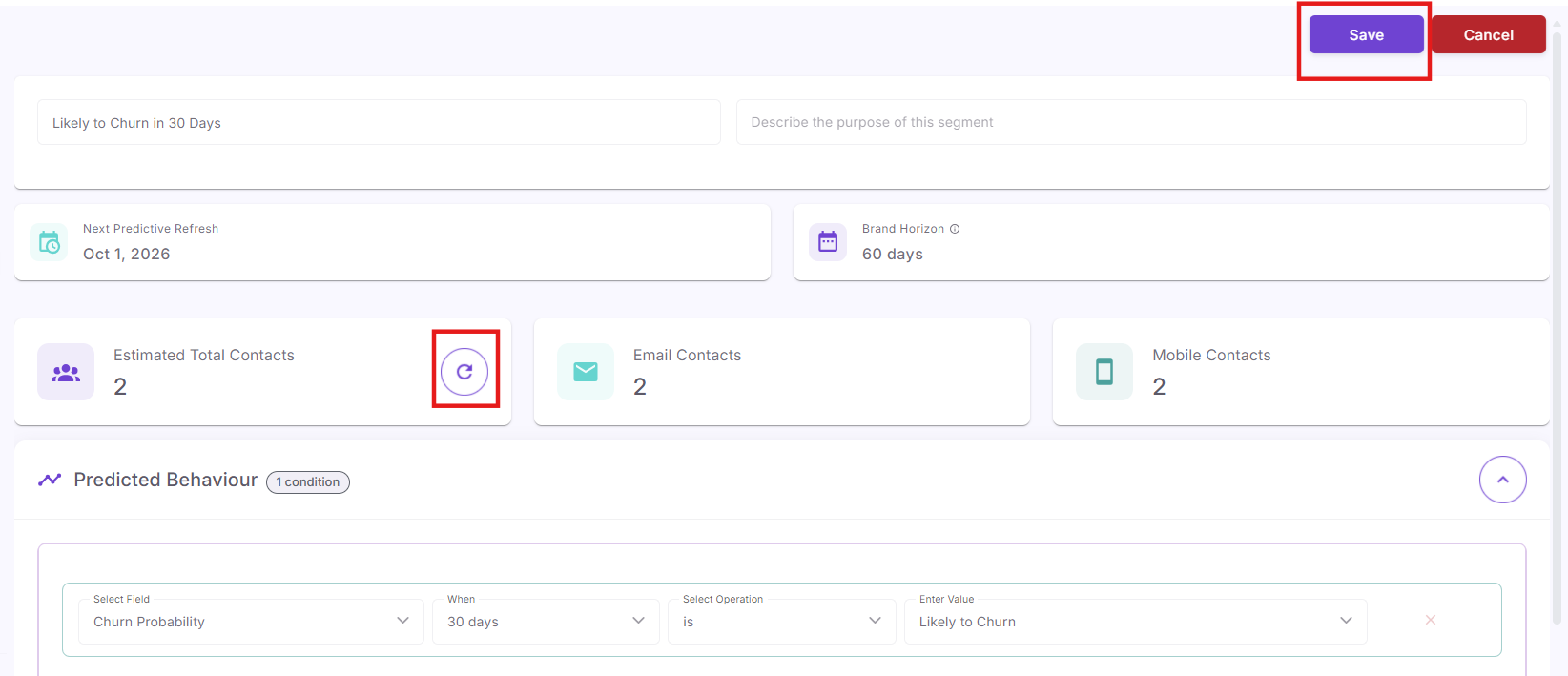
Log in to OptCulture and navigate to Audience > Segments in the left menu.
-
Click the + Add new button in the top-right corner of the Segments dashboard.
Step 2: Choose Your Starting Point
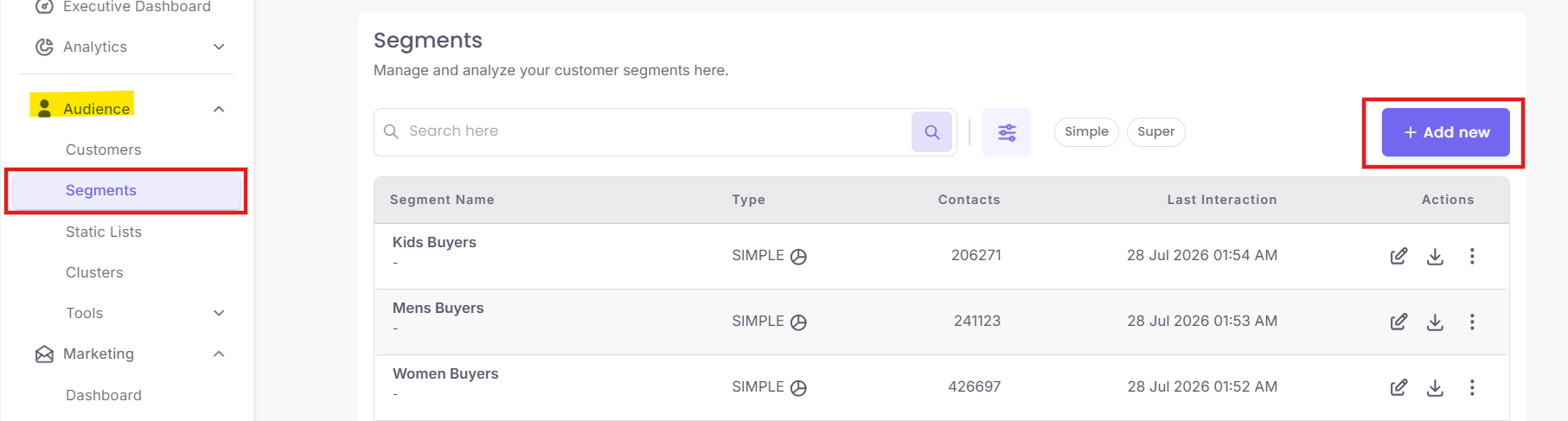
You can build a segment from scratch or choose a pre-configured template (such as Lapsed Top-Tier Members or Unredeemed Points Nudge). To build a custom predictive segment:
-
Click Build your own on the right side of the screen.
Step 3: Select AI Segment Type
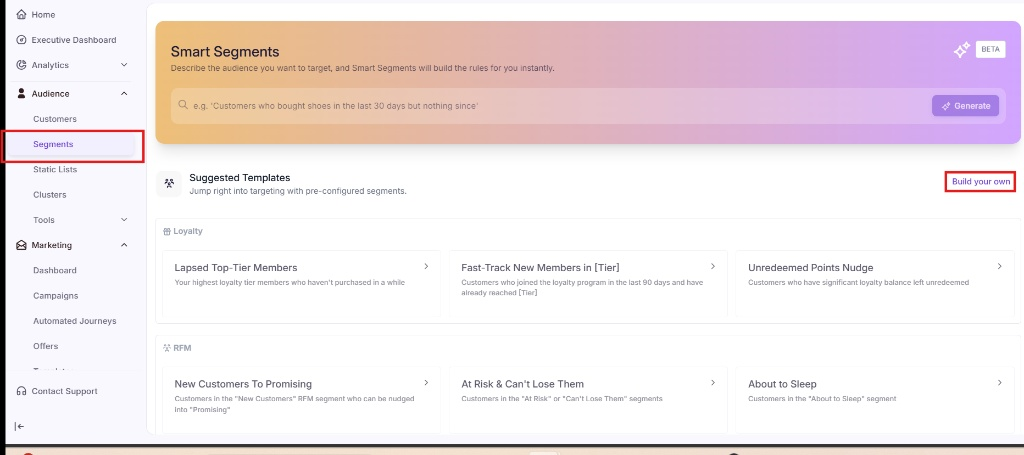
Click AI Segment (BETA) to access predictive metrics like churn risk and modeled lifetime value.
Step 4: Define Segment Details & Time Window
-
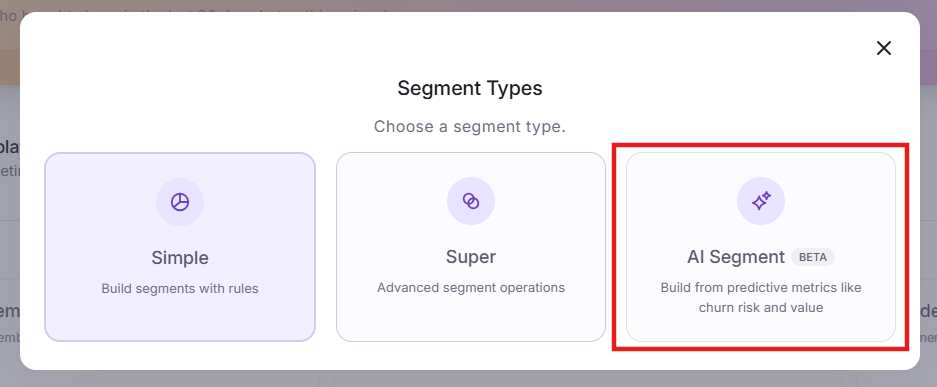
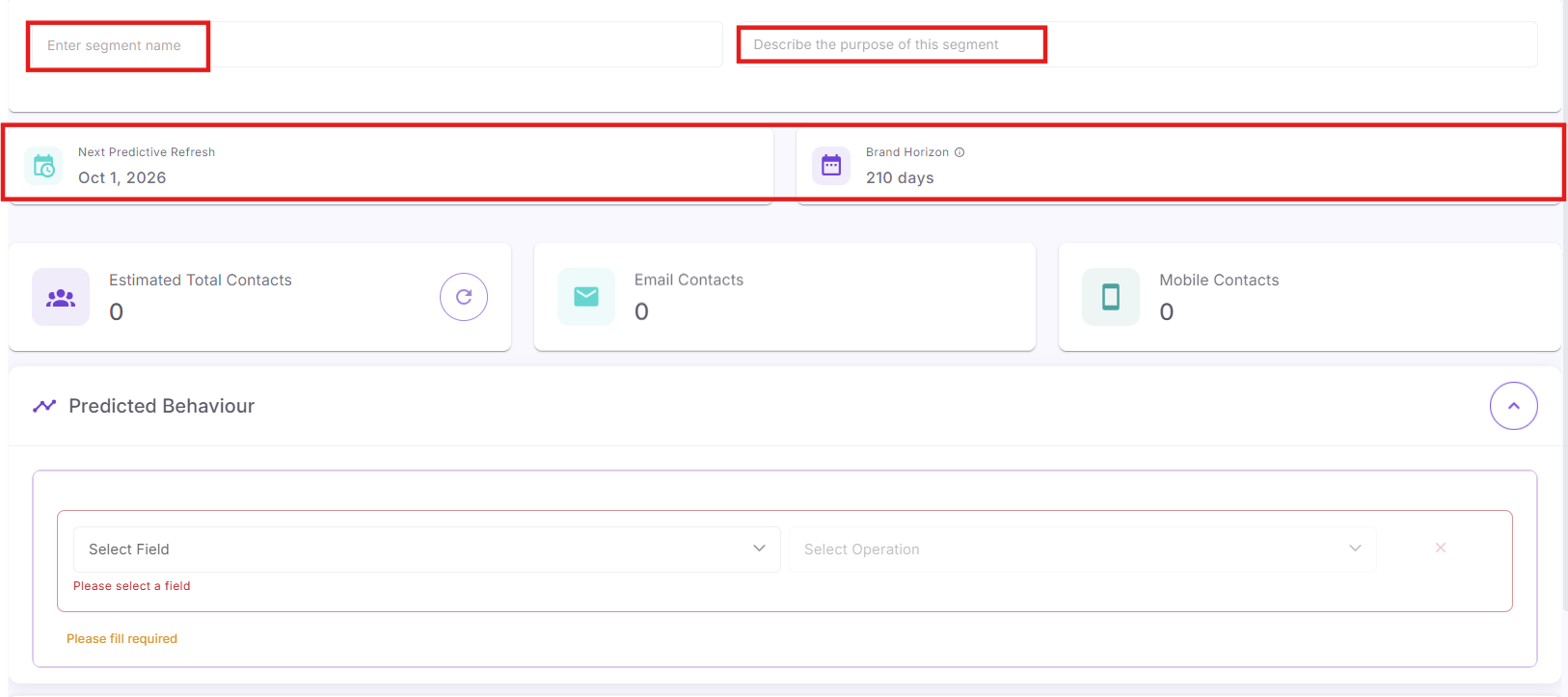
Enter a Segment Name and an optional Description.
-
Review the Next Predictive Refresh date to see when your model scores will update next.
-
Review your Brand Horizon (the default forecast window automatically calculated from your brand's average days-between-purchases).
Step 5: Configure Predicted Behaviour Rules
Under the Predicted Behaviour section, build your rule conditions using the four setup dropdowns:
-
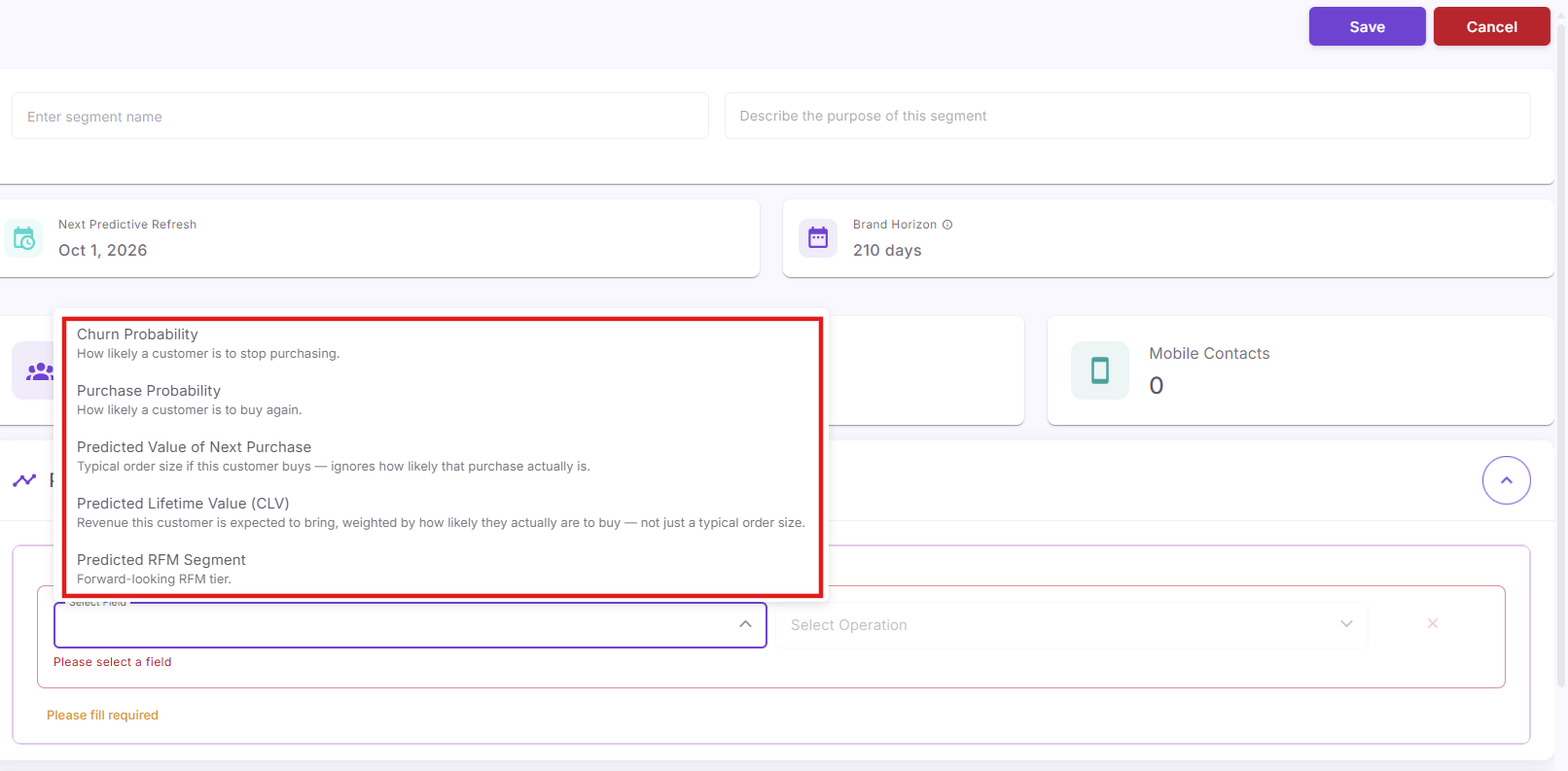
Select Field: Pick one of the 5 predictive metrics from the dropdown list.
-
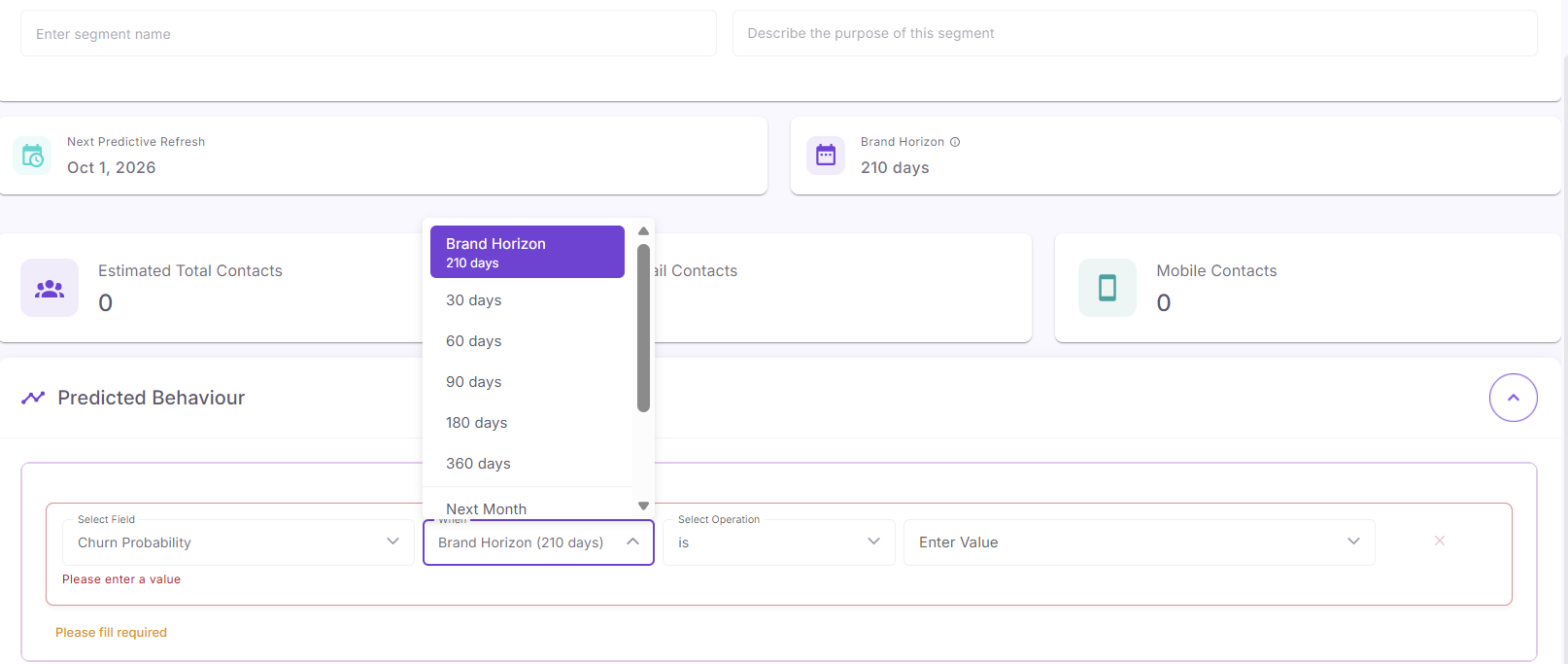
When (Time Window): Choose your evaluation window—such as Brand Horizon (210 days), 30 days, 60 days, 90 days, 180 days, 360 days, or Next Month.
-
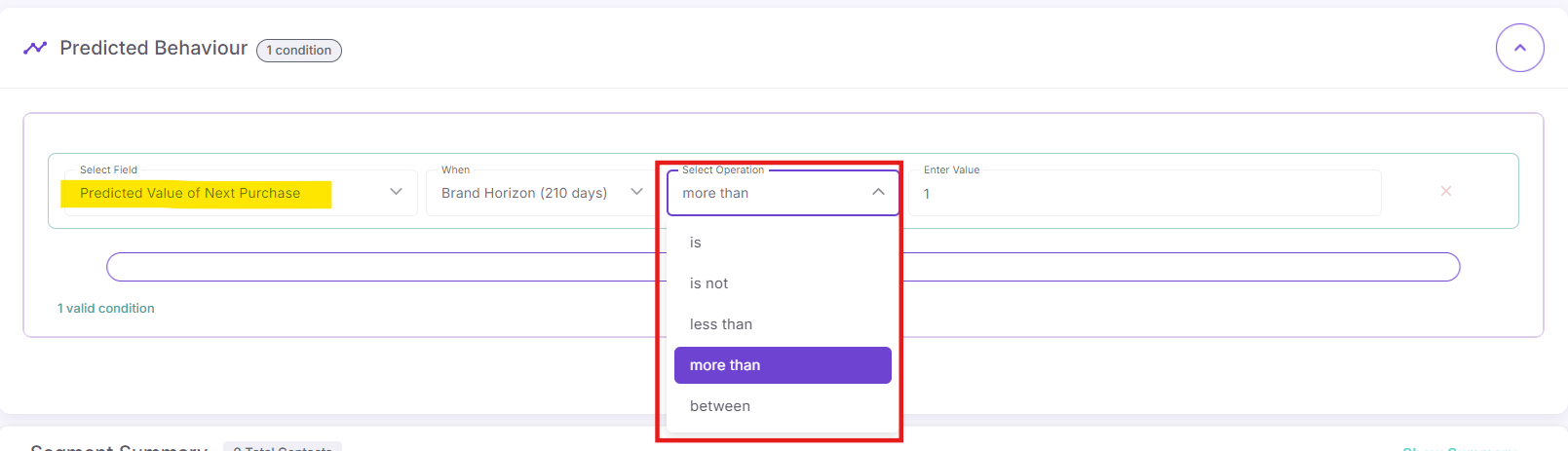
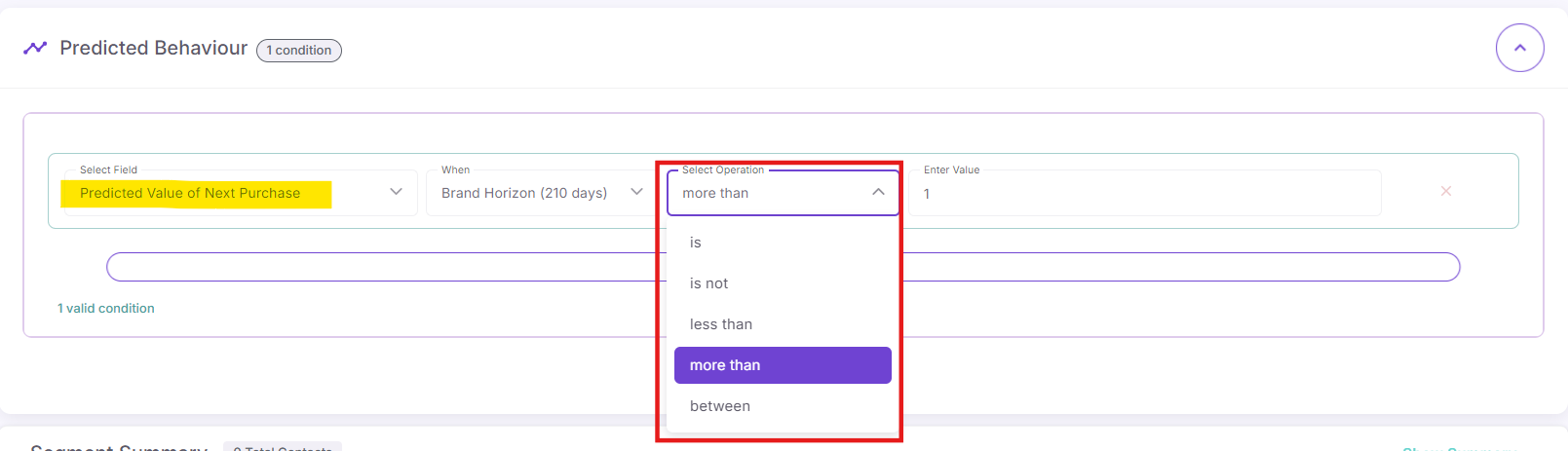
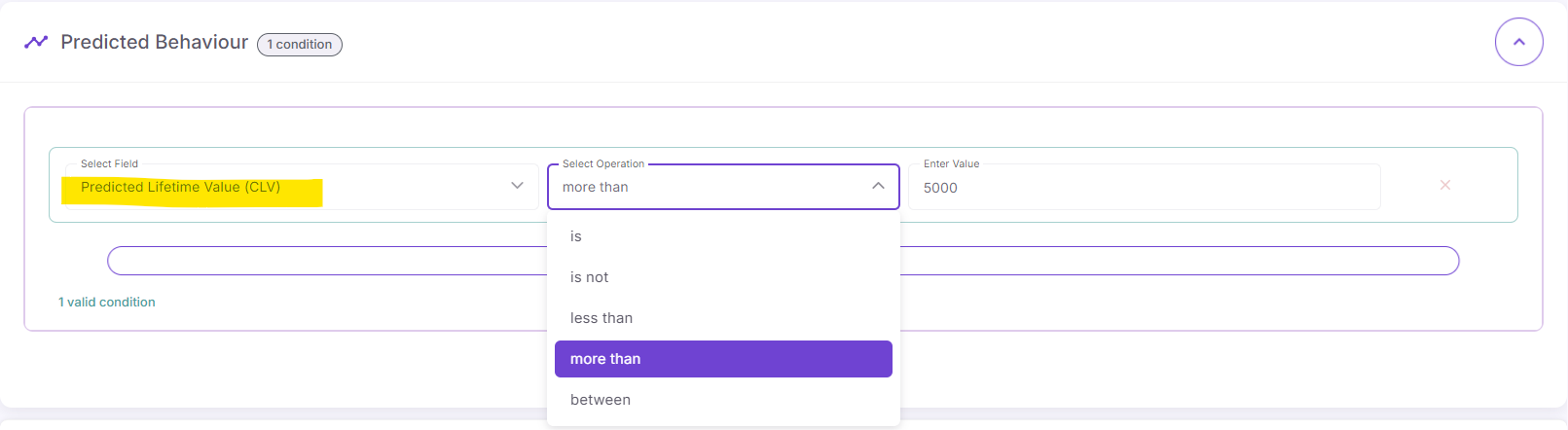
Select Operation: Select an operator like
is,is not,less than,more than, orbetween.
-
Enter Value / Select Tier:
-
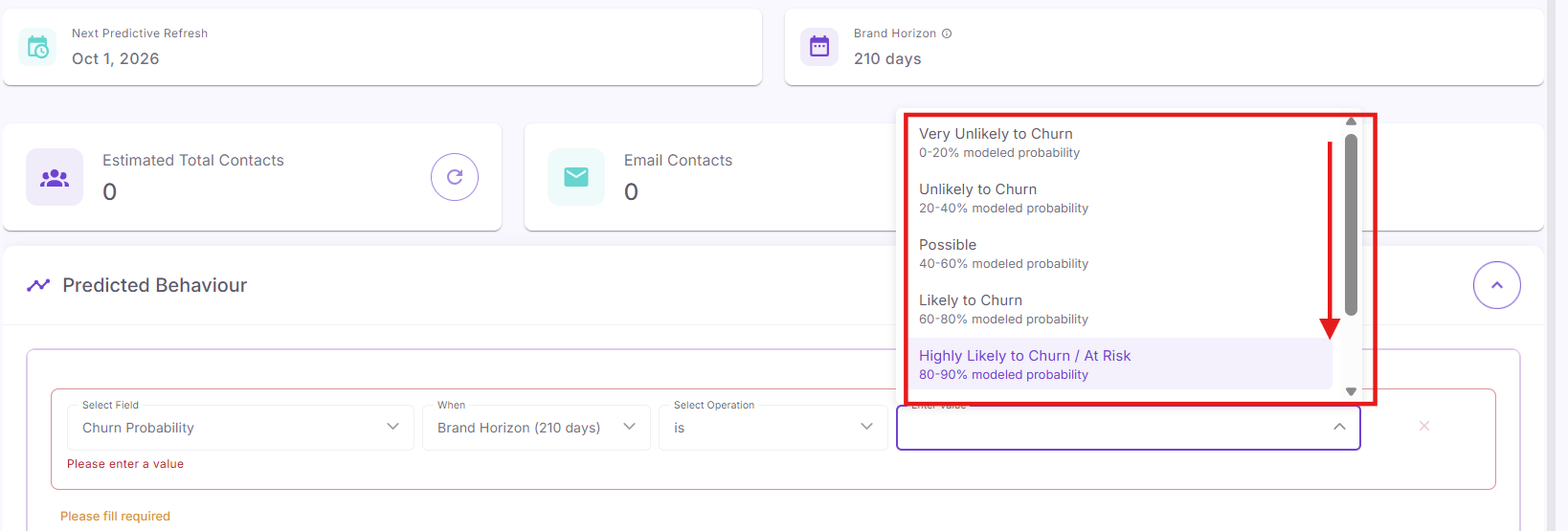
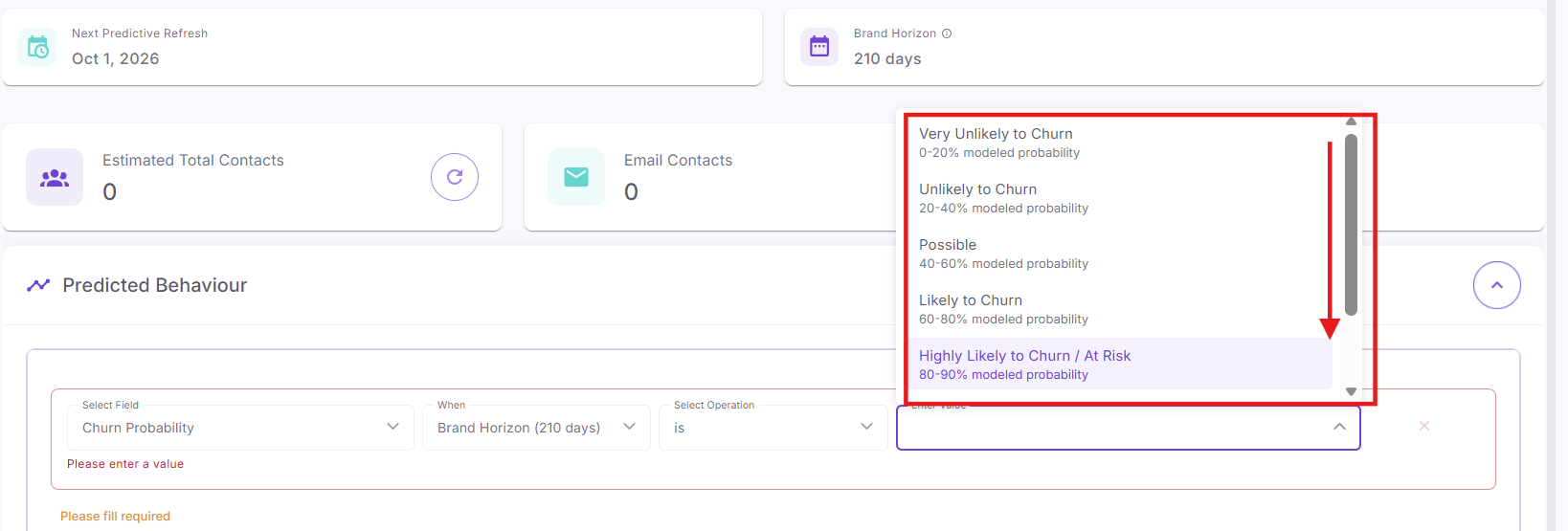
For Churn Probability, select a qualitative risk level (e.g., Highly Likely to Churn / At Risk).
-
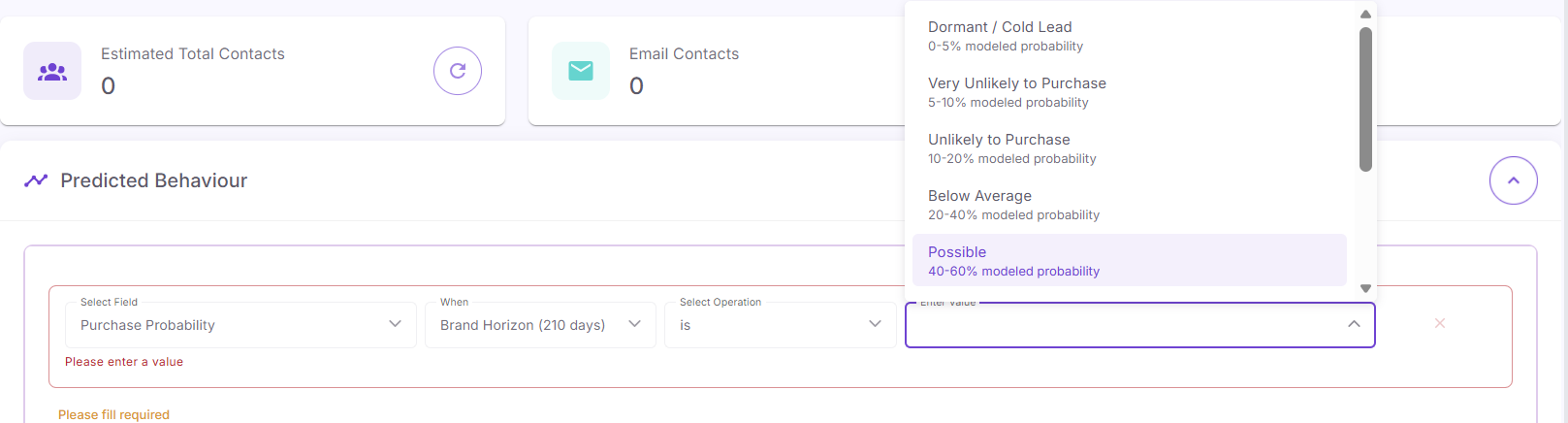
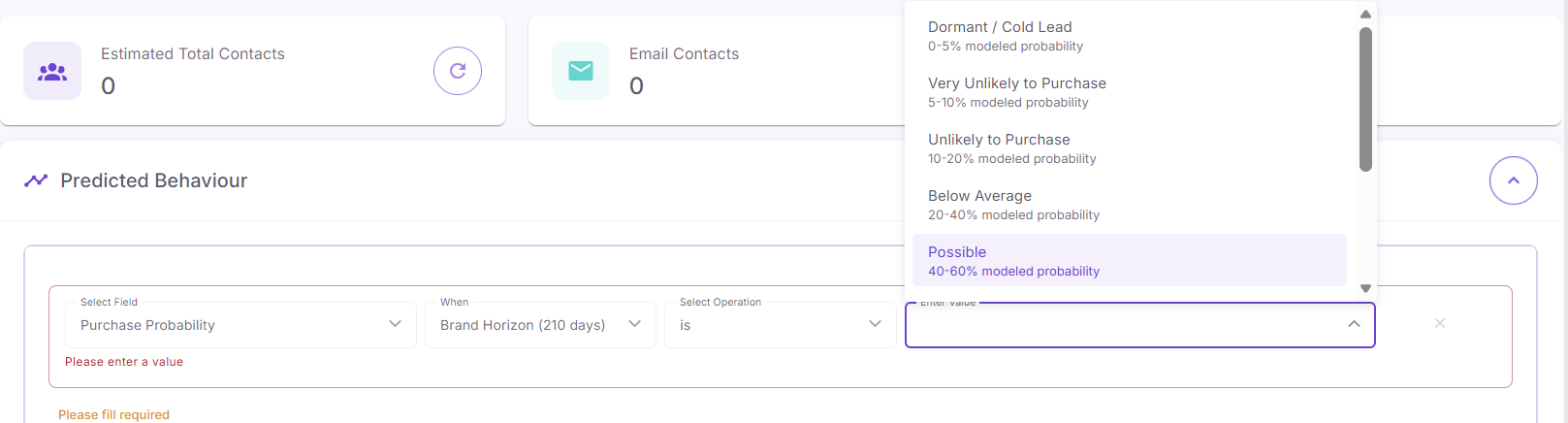
For Purchase Probability, select a readiness tier (e.g., Possible, Below Average, Dormant / Cold Lead).
-
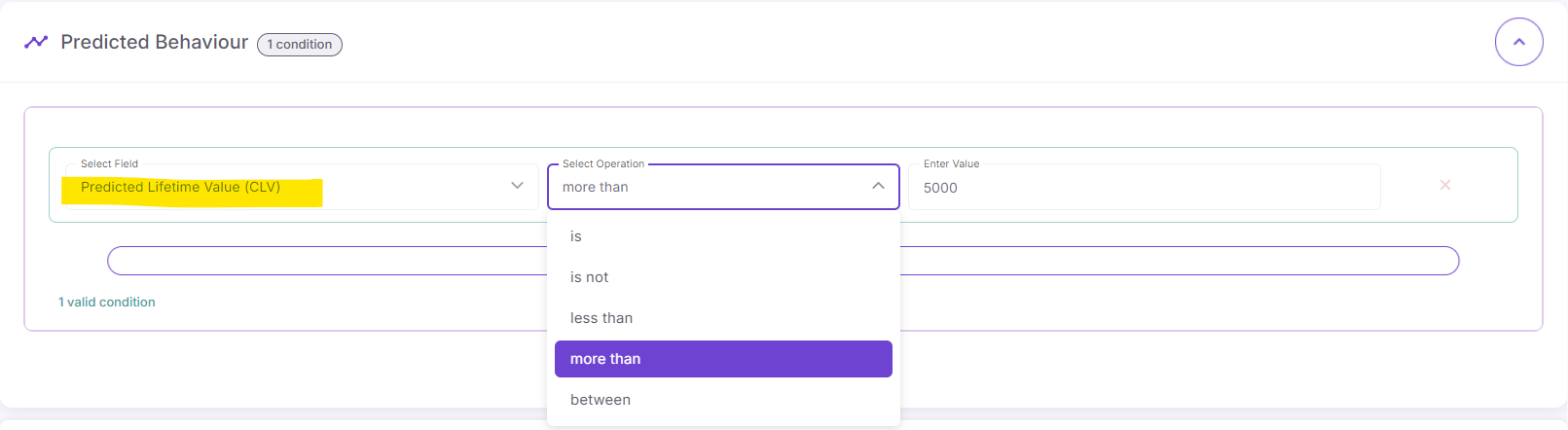
For Predicted Value of Next Purchase or Predicted Lifetime Value (CLV), choose an operator like
more thanand enter a numeric dollar value (e.g.,5000).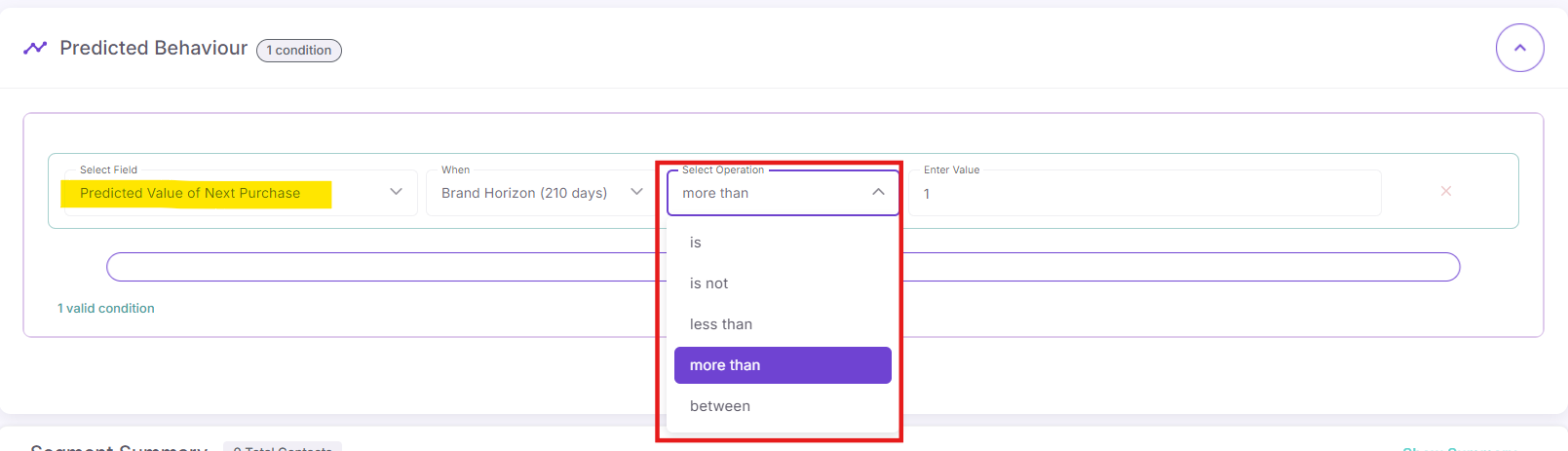
-
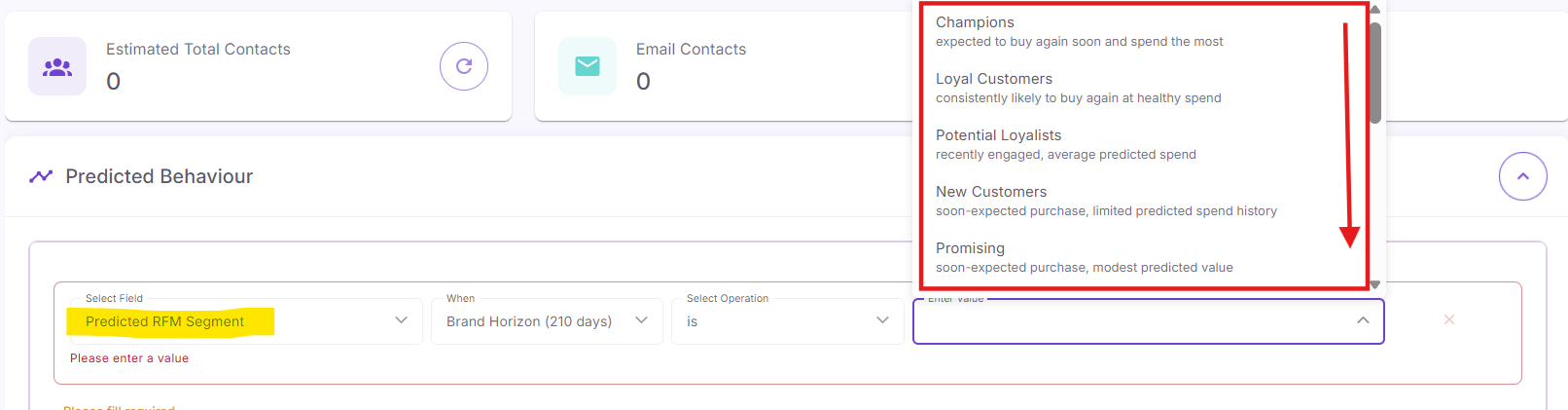
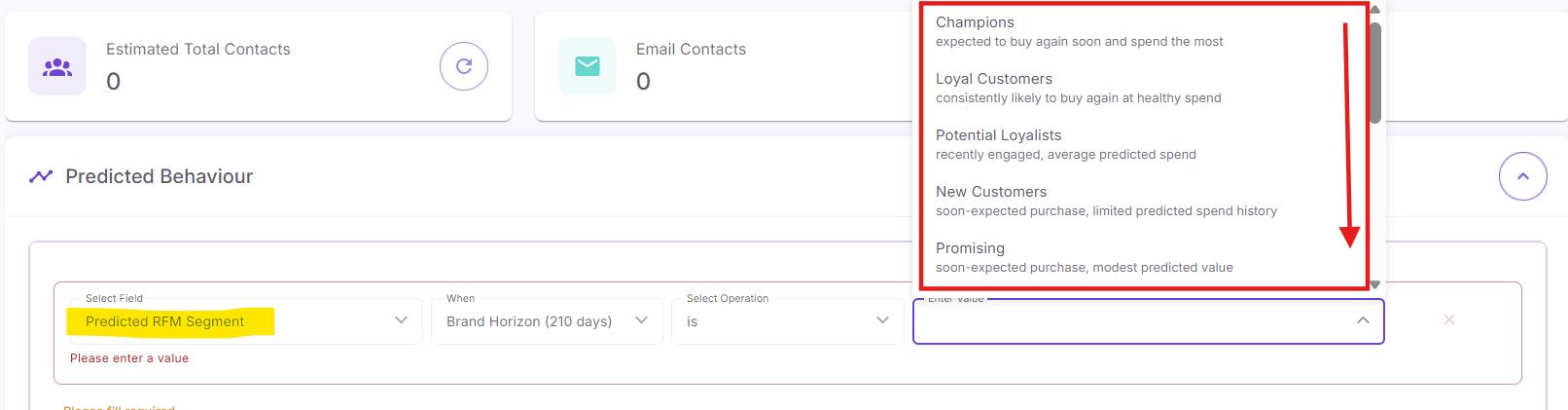
For Predicted RFM Segment, pick a forward-looking tier (e.g., Champions, Loyal Customers, Potential Loyalists).
-
Step 6: Review Reachable Counts & Save
-
Click the refresh icon next to Estimated Total Contacts to preview audience size.
-
Review the breakdown of Email Contacts and Mobile Contacts.
-
Click Save in the top-right corner to save your segment.