
Creating a WhatsApp Template (Text, Document, Image and Video)
Step 1: Access the Templates Section
-
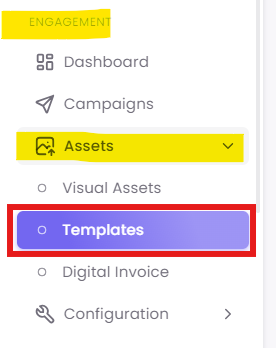
From the main navigation menu, click on Assets.
-
Under Assets, select Templates.
Step 2: Start Template Creation
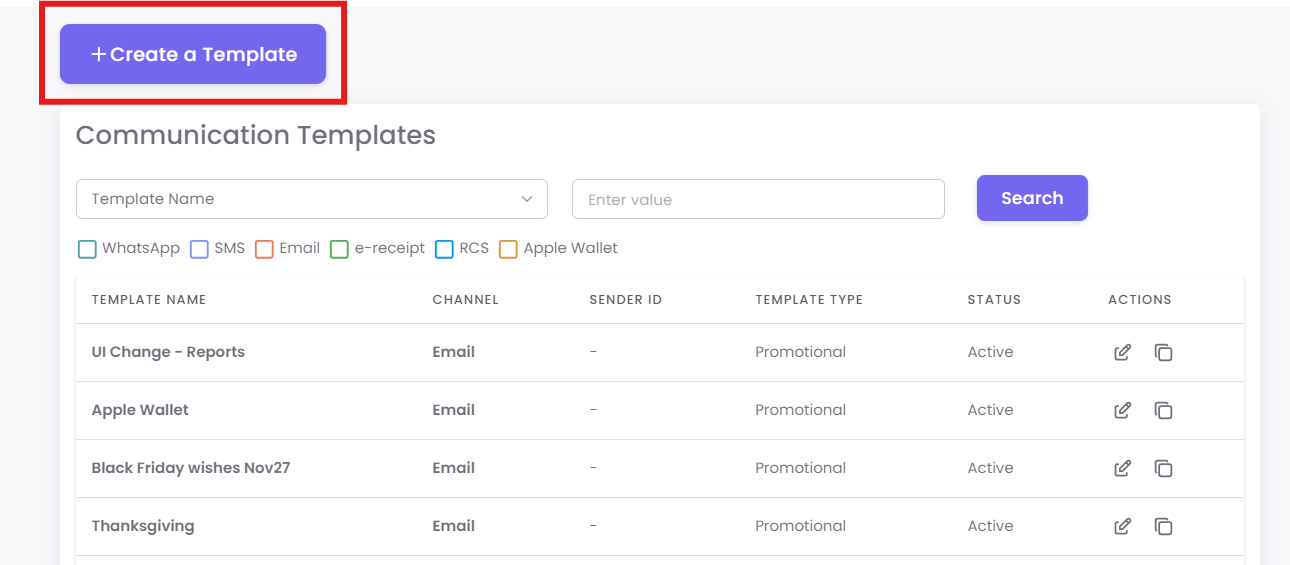
1. On the Communication Templates page, click the + Create a Template button.
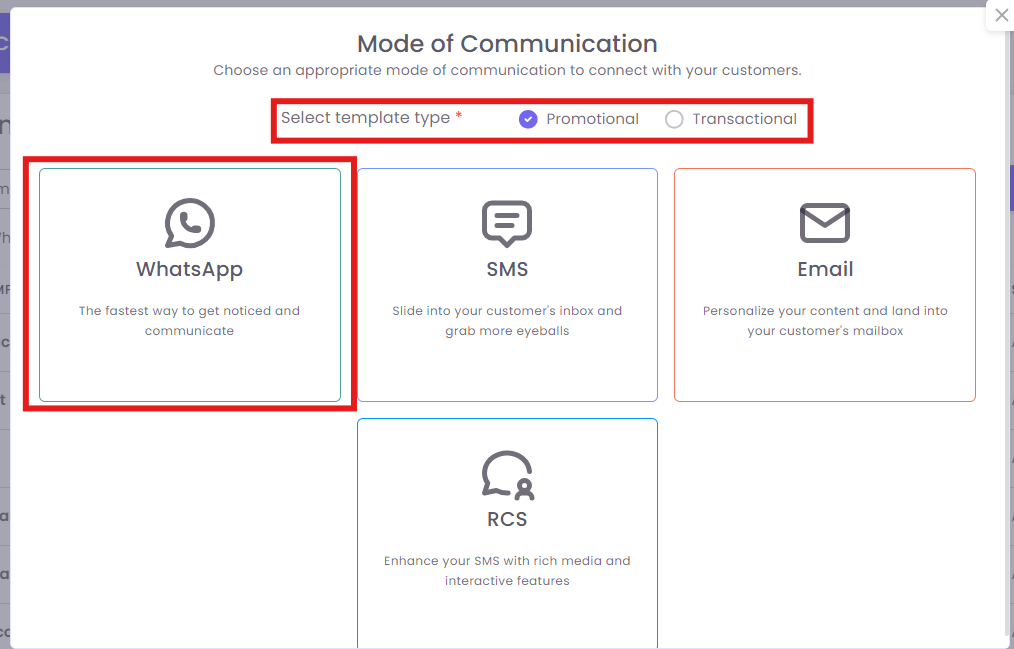
2. In the Mode of Communication step, select the following:
- Select template type: Choose Promotional
-
Select communication channel: Choose WhatsApp
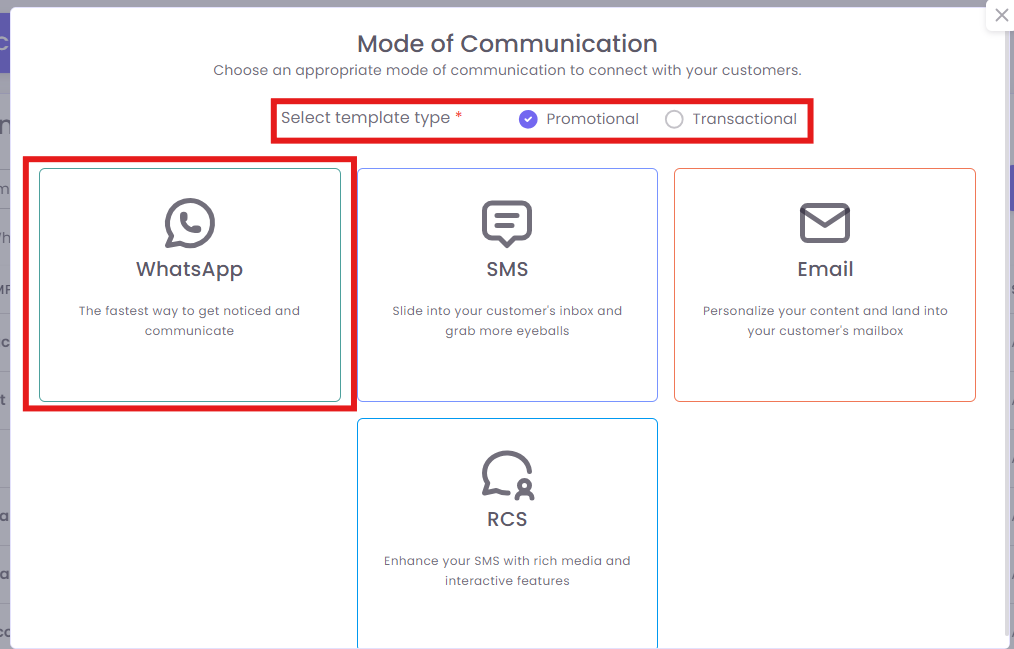
Step 3: Enter Template Details
-
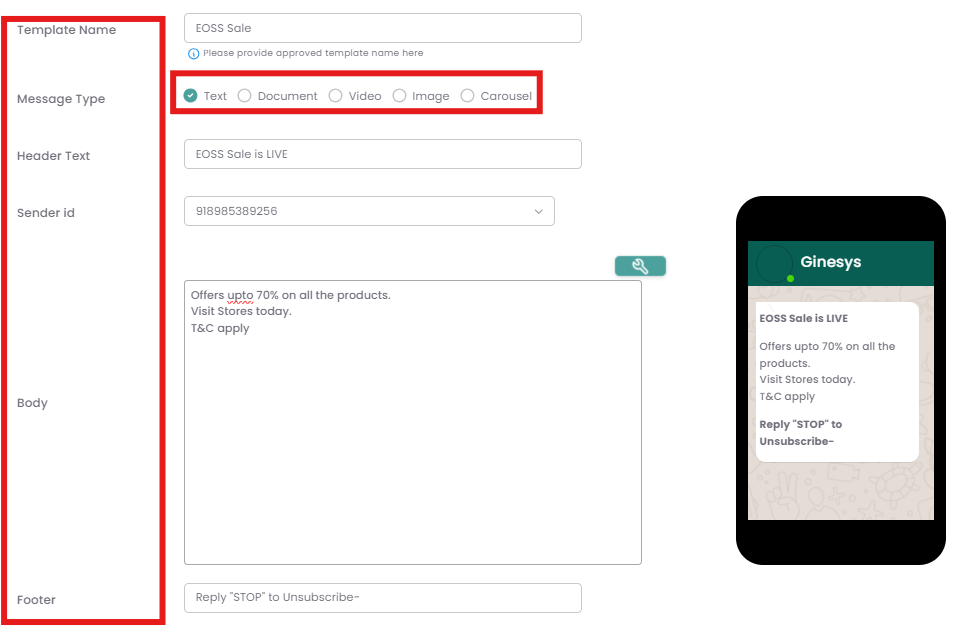
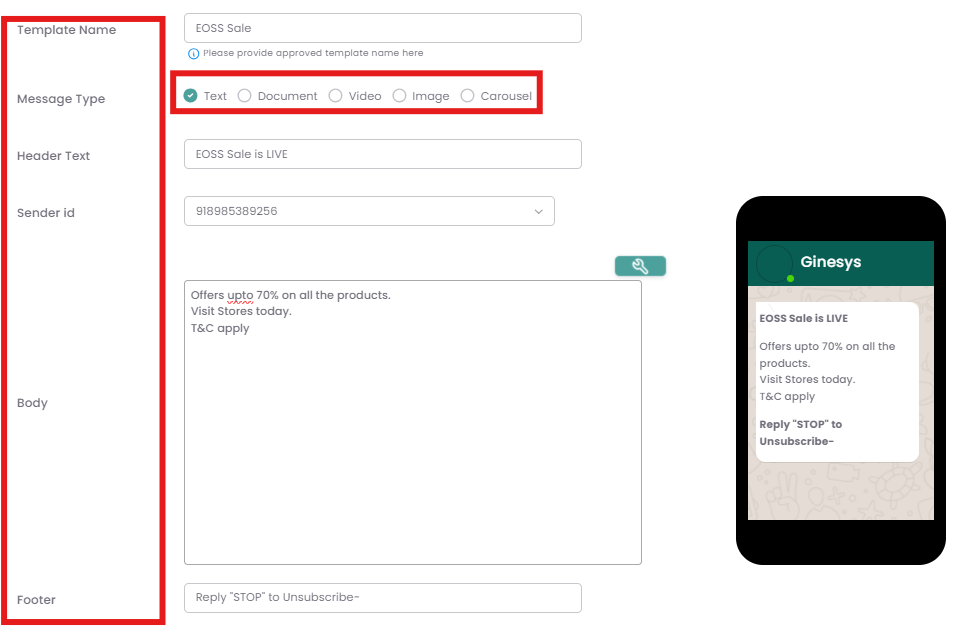
In the Add Template section, fill in the details as registered in Meta.
-
Template Name: Enter a unique, descriptive name (e.g., EOSS Sale).
-
Message Type: Select Message type
-
Header Text: Text displayed prominently at the top (e.g., EOSS Sale is LIVE).
-
Sender id: Select your approved WhatsApp Business Account number
-
Body: Type your message content, including variable placeholders
-
Footer: Optional text often used for important notes or compliance (e.g., Reply 'STOP' to Unsubscribe-).
-
Template Registration ID: Enter your official template registration ID provided by the messaging authority (e.g., 1456624).
-
Step 4: Inserting Personalization (Merge Tags)
To personalize your message, use Merge Tags (Placeholders).
-
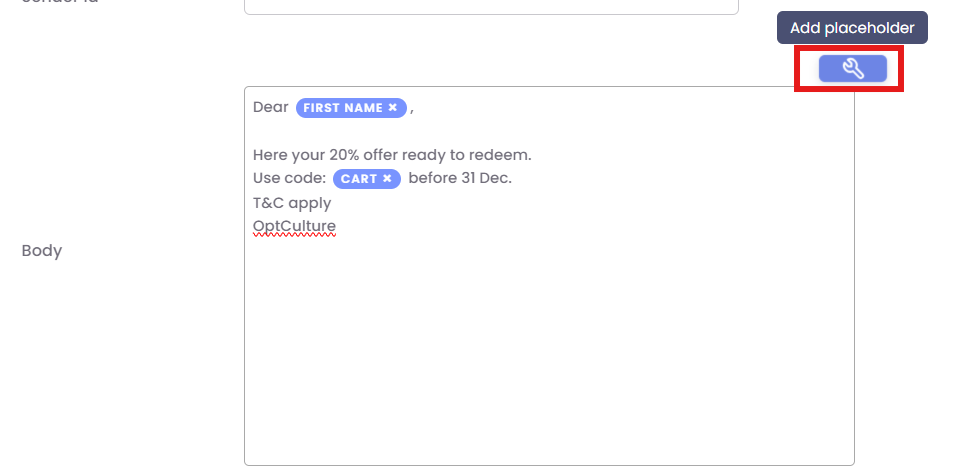
Place your cursor in the Body field where you want the personalized data to appear.
-
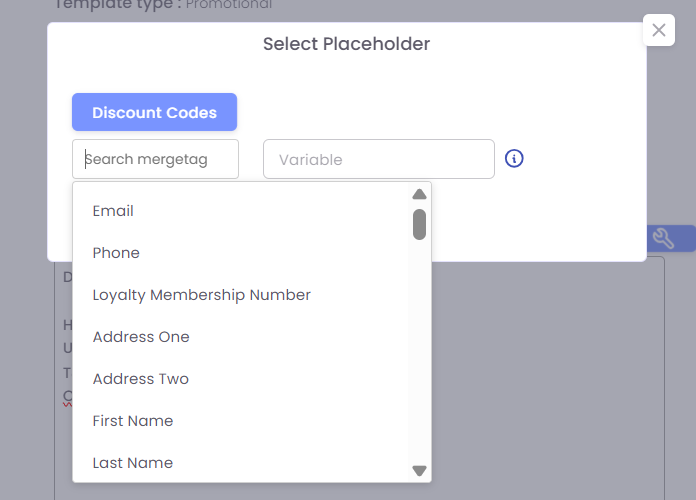
Click the blue search/placeholder icon next to the body field to open the Select Placeholder window.
-
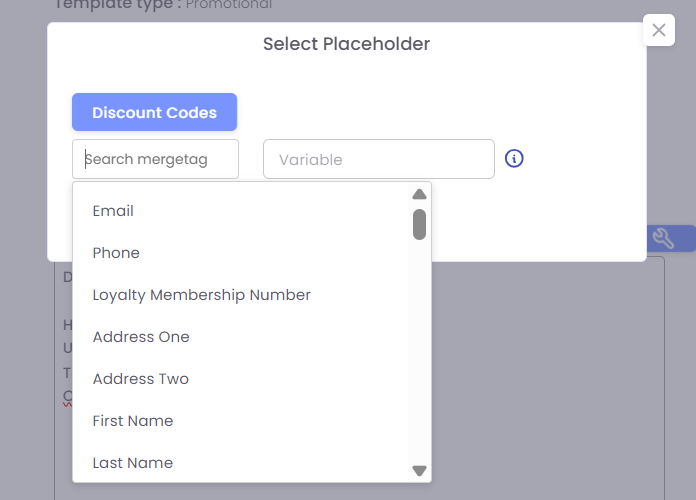
You can use the Search merge tag field or scroll through the list to find the required field.
-
Select the desired field, such as First Name or Discount Codes (as shown in the screenshot).
-
The system will insert the correct merge tag into your message body (e.g.,
FIRST NAME).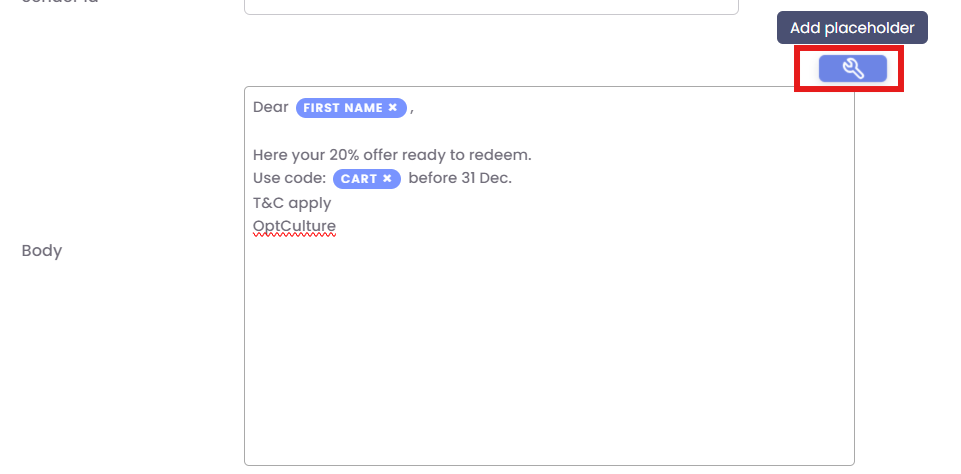
Step 5: Add Button
You can use Dynamic URLs to track which specific customers clicked a link within your campaign, improving campaign analytics.
-
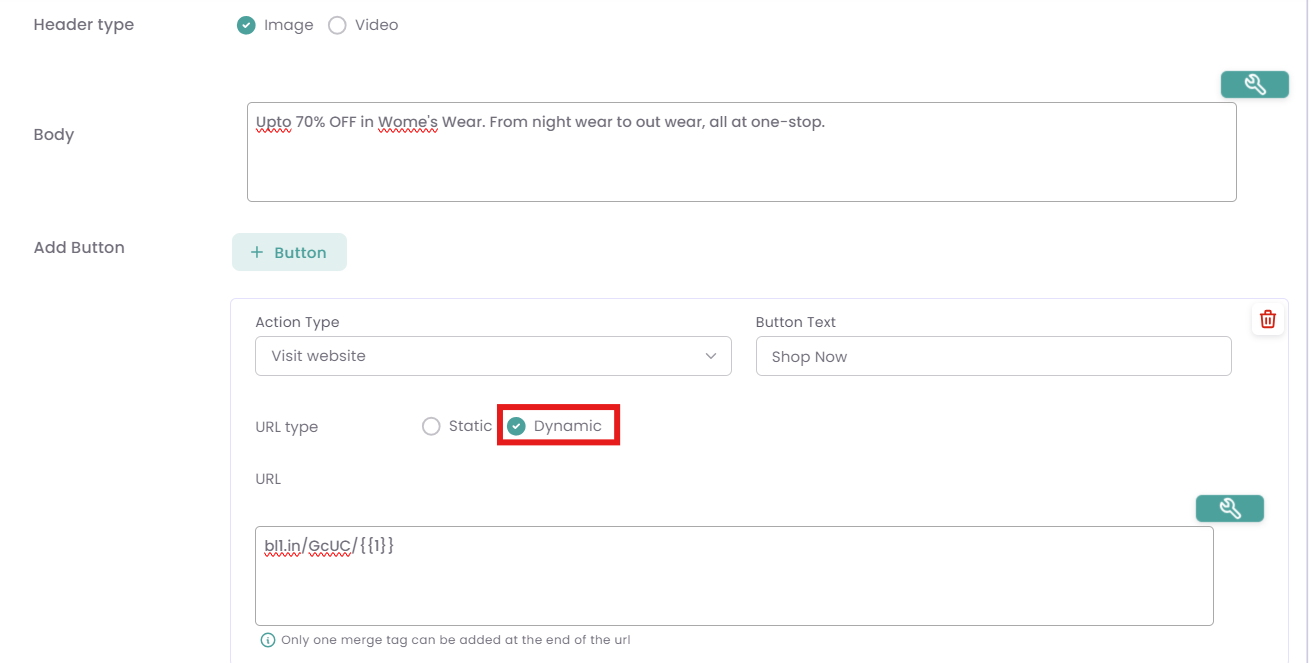
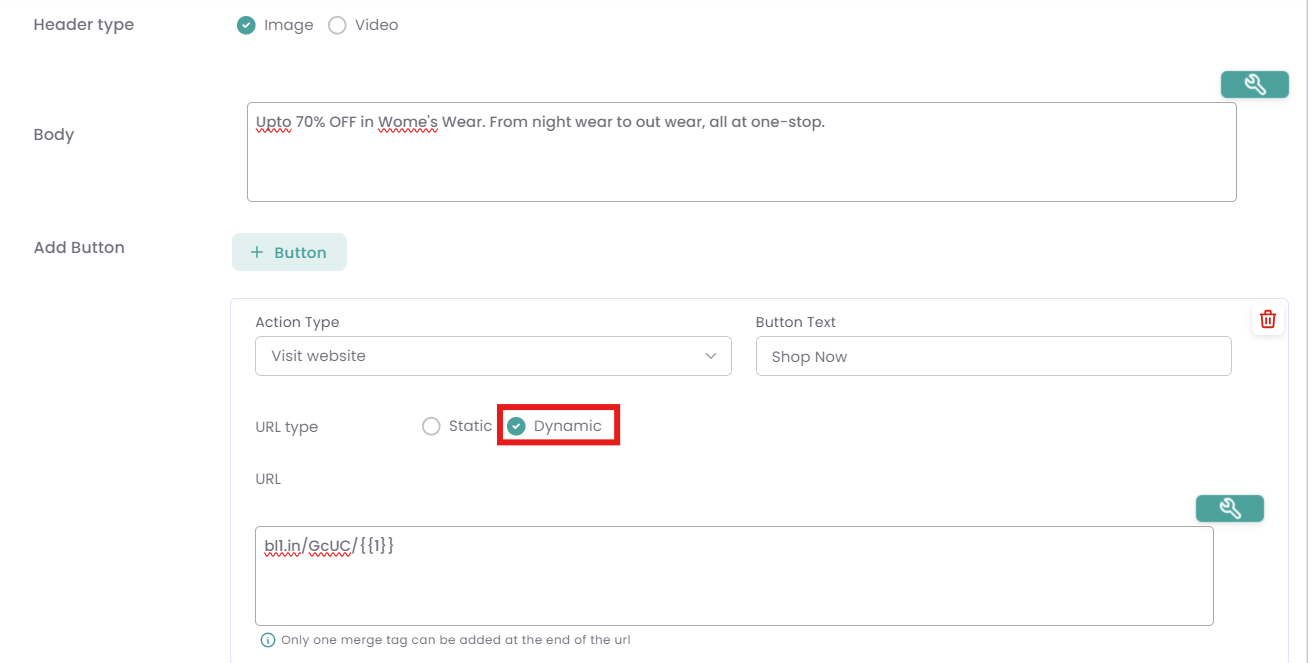
When configuring a Visit website button, select the Dynamic URL type.
-
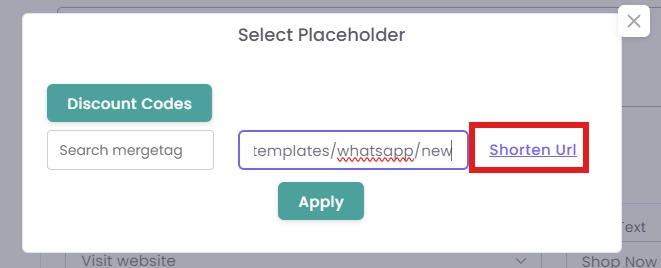
Click the search/placeholder icon next to the URL field.
-
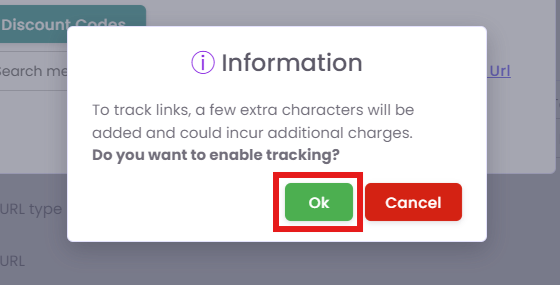
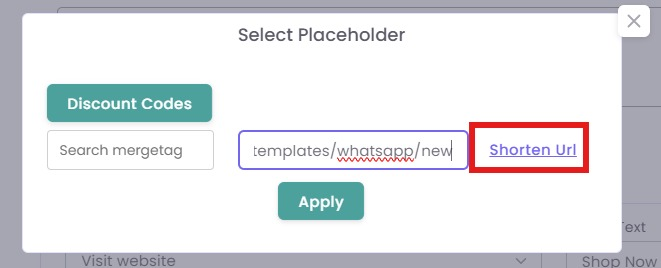
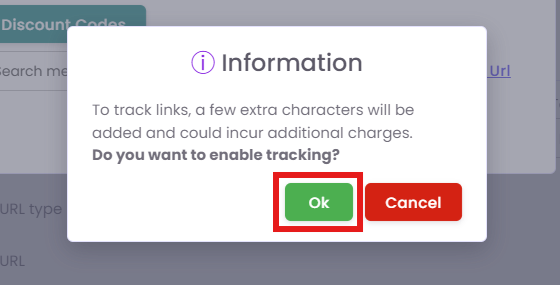
In the pop-up, paste your base URL and click OK to track.
-
Click Shorten Url if your platform's tracking requires it.
-
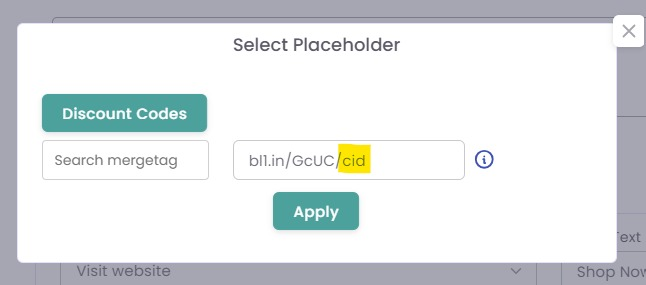
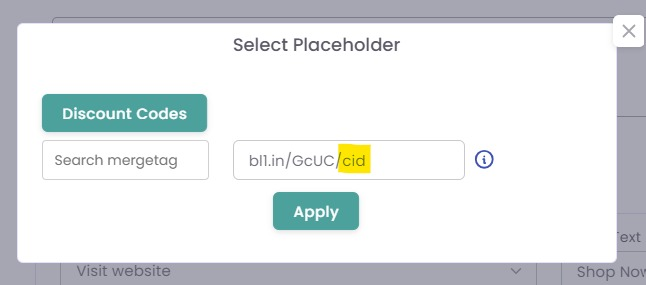
After shortening, you will see a unique placeholder (e.g.,
{{1}}for a merge tag) appended to the shortened URL (e.g.,bll.in/GcUc{{1}}). This placeholder is typically for a Customer ID (CID) or similar tracking variable. -
Click Apply. The resulting URL in the button configuration will contain the tracking placeholder.
Step 6: Save the Template
-
Review all the entered information, especially the message body and merge tags.
-
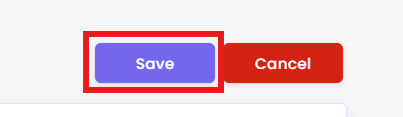
Click the Save button to finalize and store your SMS template.
Here is the WhatsApp Carousel template